CoryDora

Shipping now Electronics Open source hardware

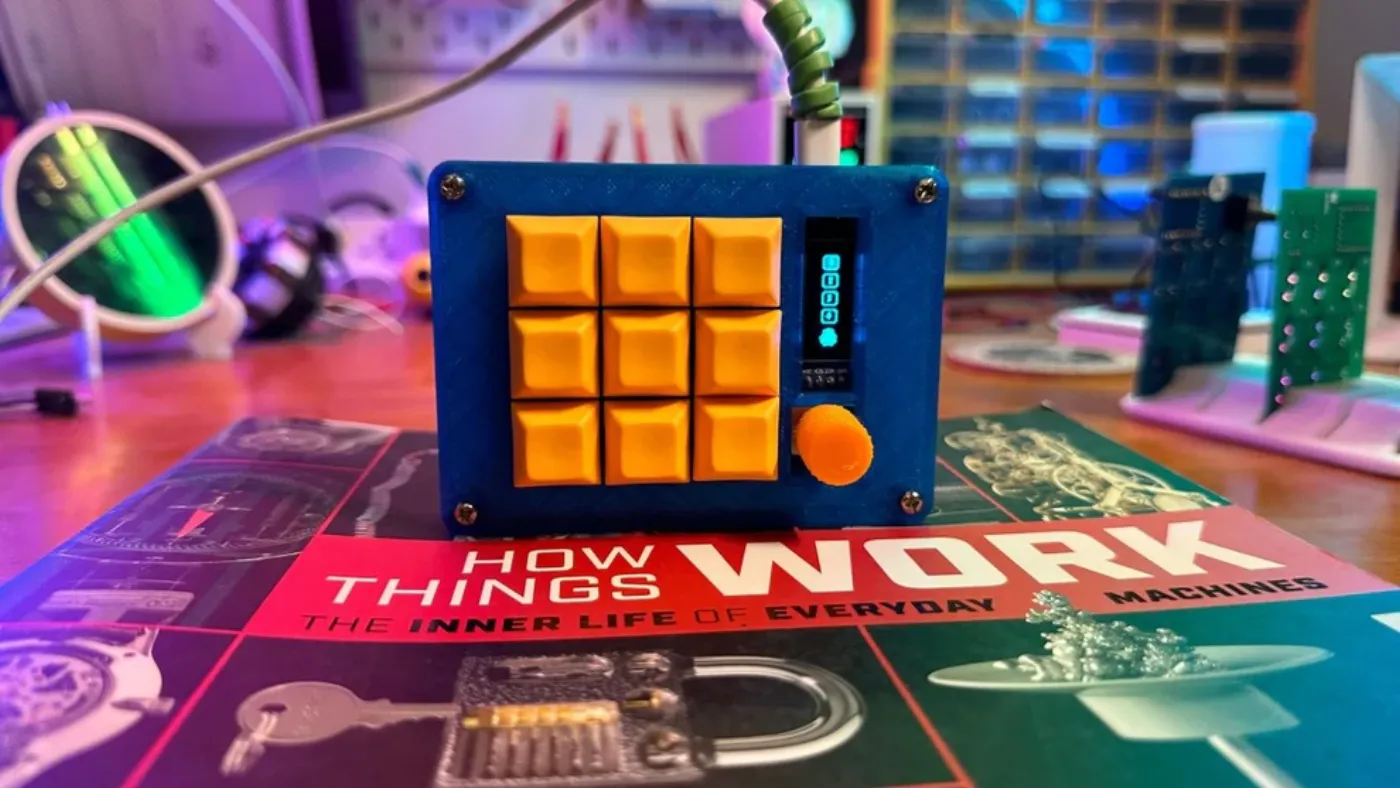
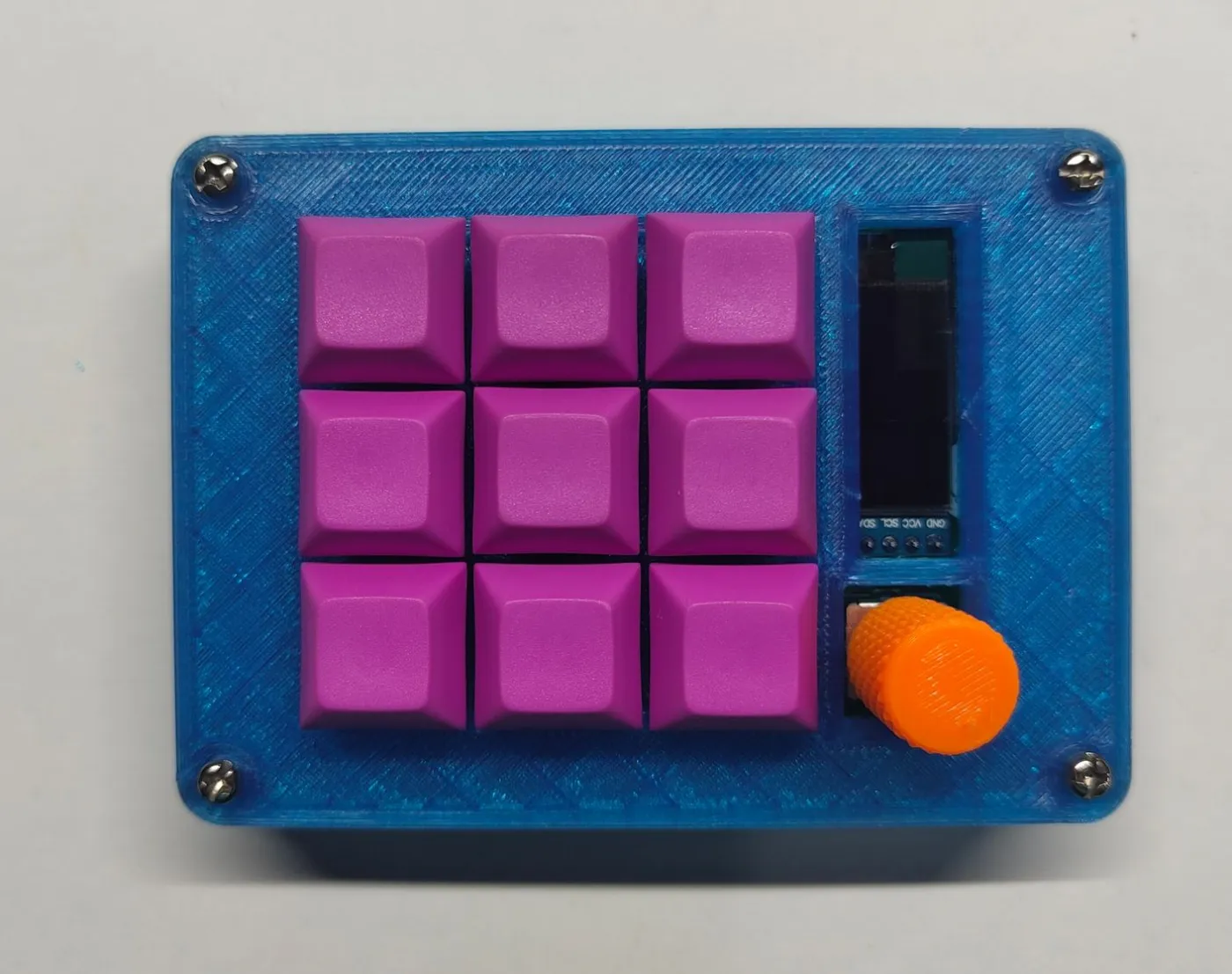
A fully open-source 3x3 QMK macropad with hotswap switches and USB-C. Made in Bengaluru.

Specifications

MCU
RP2040 Zero
Layout
3x3 + rotary encoder
Switches
MX hotswap (9 slots)
Display
0.91" OLED 128x32
Interface
USB-C
Firmware
QMK + VIA
Case
3D printed (PETG / PLA)
PCB
KiCad, open hardware

Features

  • Fully open source - schematics, PCB, and case files on GitHub
  • Hotswap MX sockets - swap switches without soldering
  • QMK firmware with VIA remapping - no reflash needed to remap keys
  • Rotary encoder for volume, scroll, or any analog input
  • OLED display shows layer, WPM, or custom graphics
  • USB-C connector
  • 3D printable case (STLs included)
  • Great first soldering project - through-hole components only
  • Designed and made in Bengaluru

3D Model

Loading 3D model…
109 × 79 × 36 mm
1 / 4

Palm-sized

Nine keys, a rotary encoder and up to four layers - in a footprint that sits under your palm.

PCB Design

Powered by KiCanvas

Bill of Materials

7 parts
7 lines · 37 parts
PartQtyRefSource
Diode 1N4148D1-D9stackskb
M2 screwsH1-H4
M2.5 screws
MX hotswap socketS1-S9stackskb
OLED 128x32 I2CJ1robu.in
Rotary encoder Alps EC11ESW1robu.in
RP2040 ZeroU1robu.in

Source Files

Click any file to preview it - read the schematic, scan the BOM, then download.

Build Guide

A great first soldering project. Every component is through-hole - no surface-mount work required. Set aside a couple of hours, gather the parts from the inventory list, and follow the steps in order.

1

Tools and pre-requisites

You will need: a soldering iron, solder (flux-core recommended), a screwdriver, tweezers, and a pair of pliers. A breadboard is also useful for Step 2.
Tools and pre-requisites - step 1
2

Inventory check

Before starting, lay out all parts: the CoryDora PCB, 9 diodes, RP2040 Zero, rotary encoder, OLED display, 8x M2 and 8x M2.5 screws, and 3D-printed case parts (bottom, top, trim).

3

PCB overview

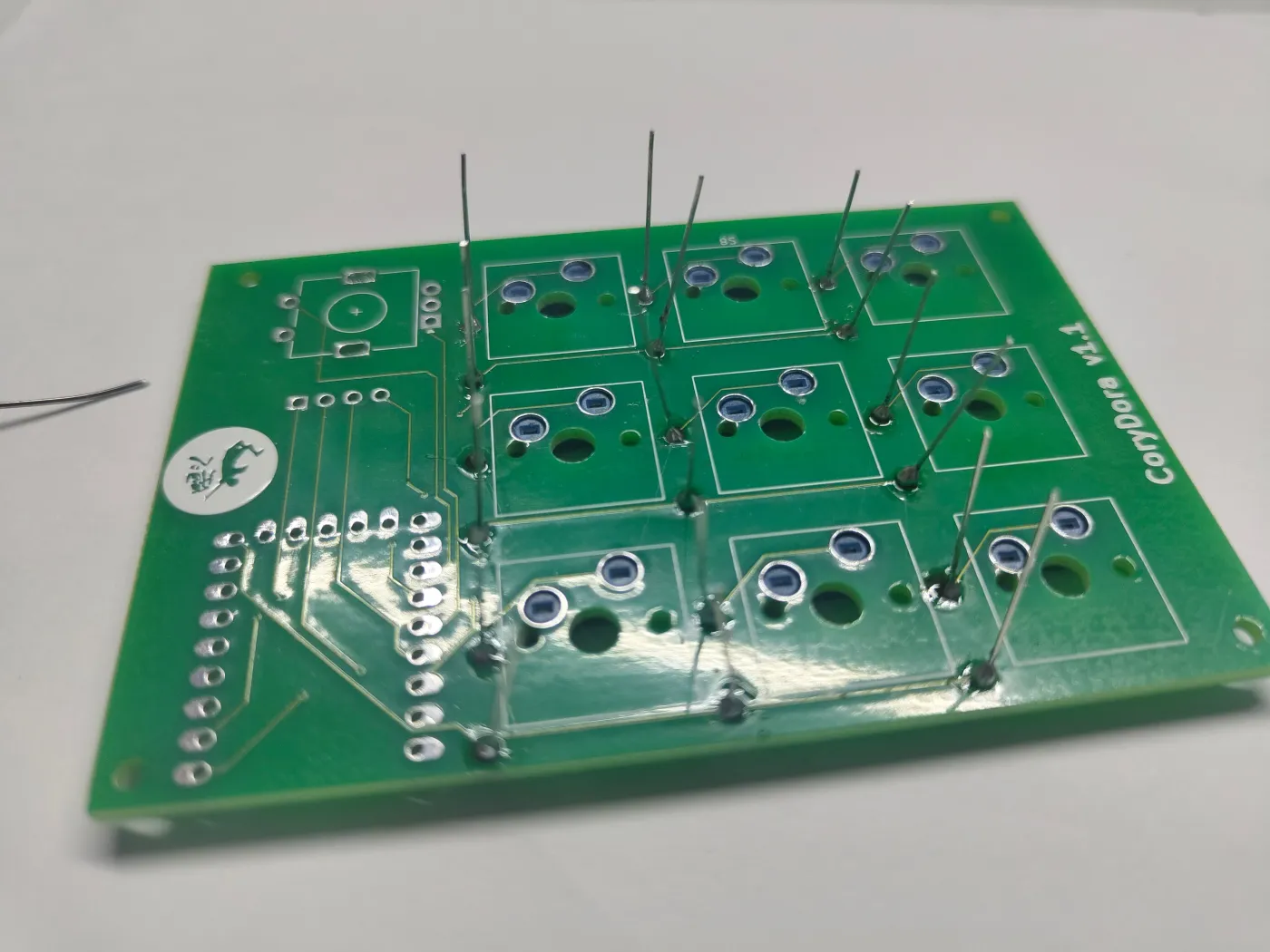
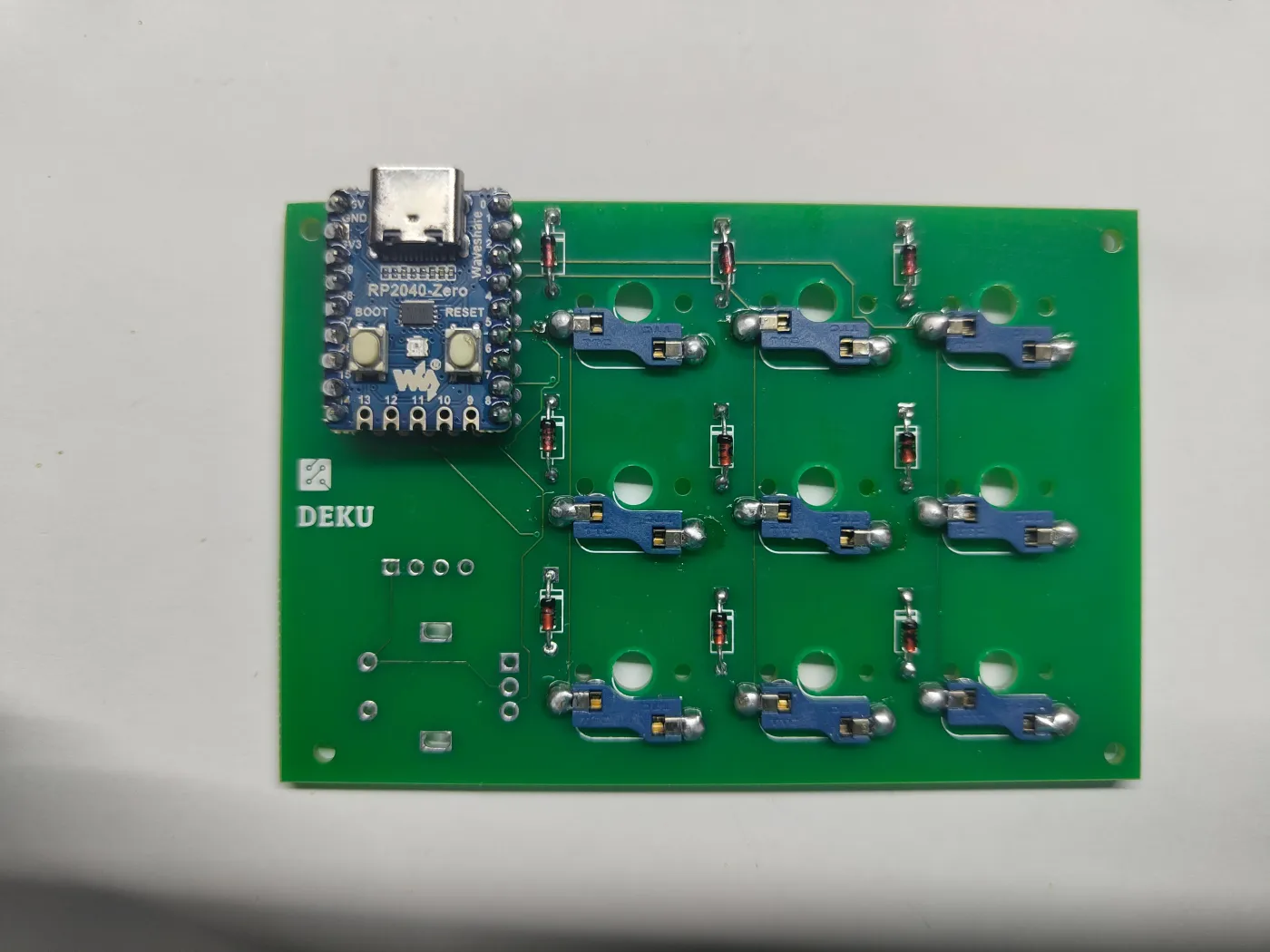
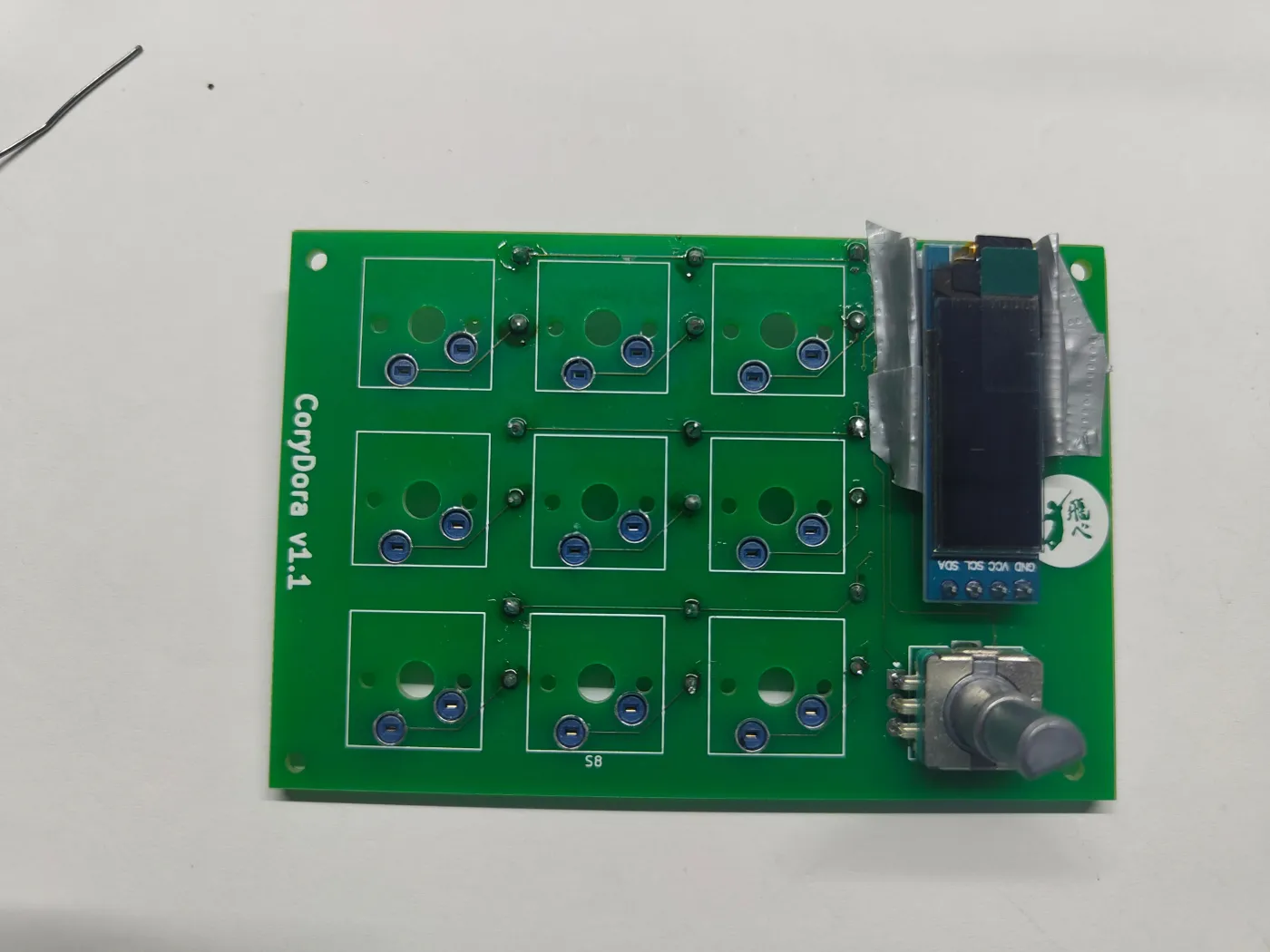
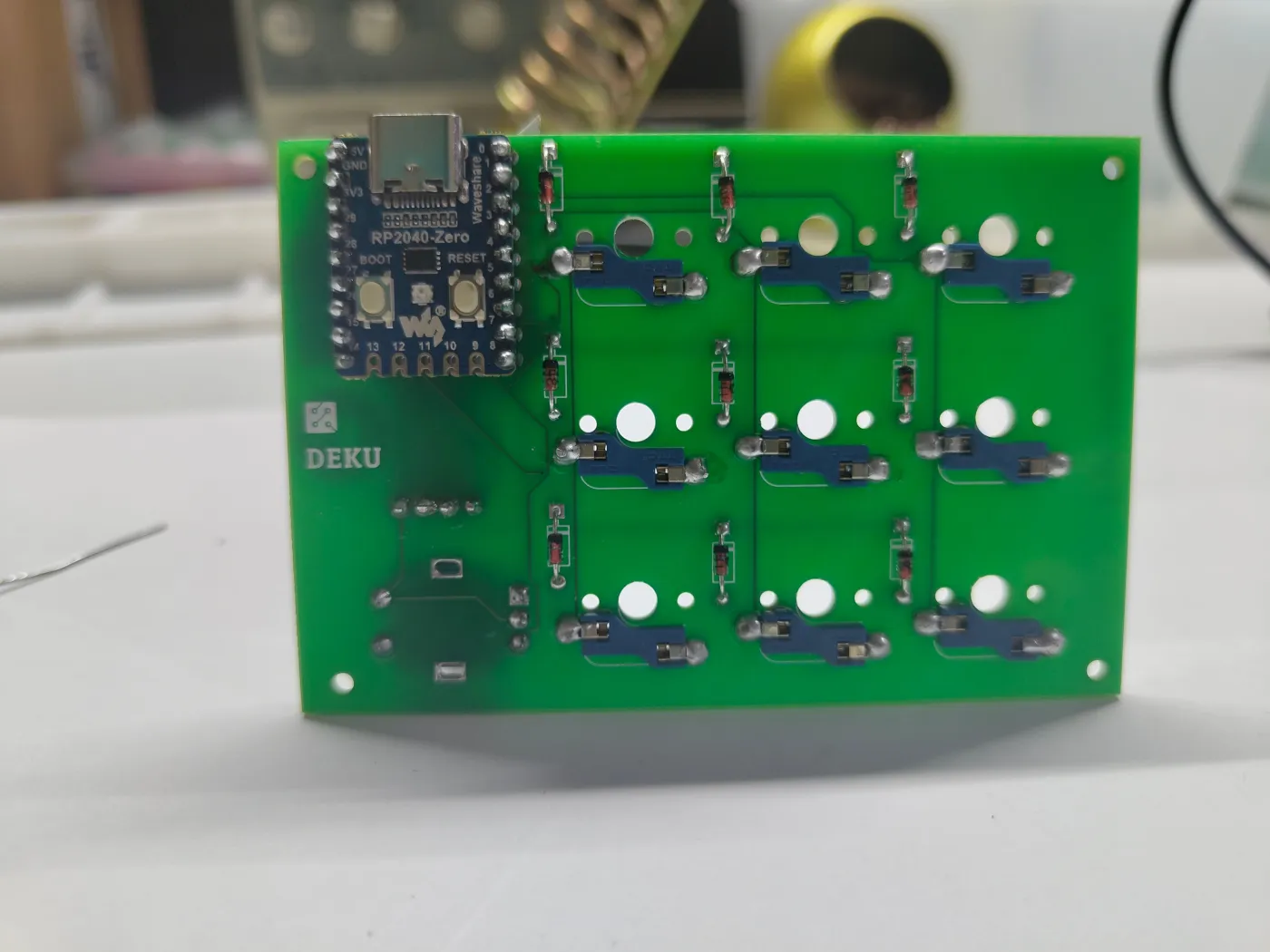
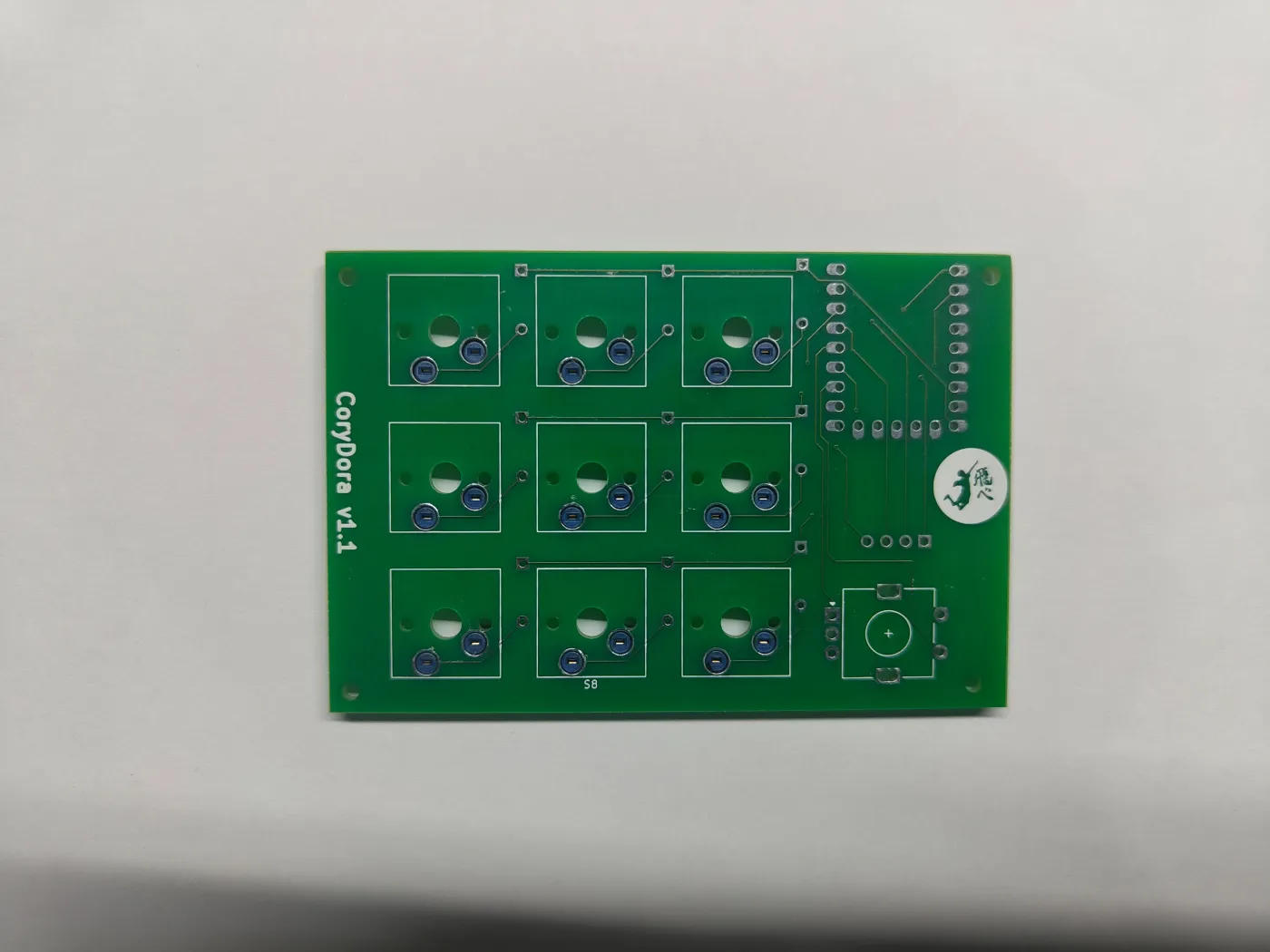
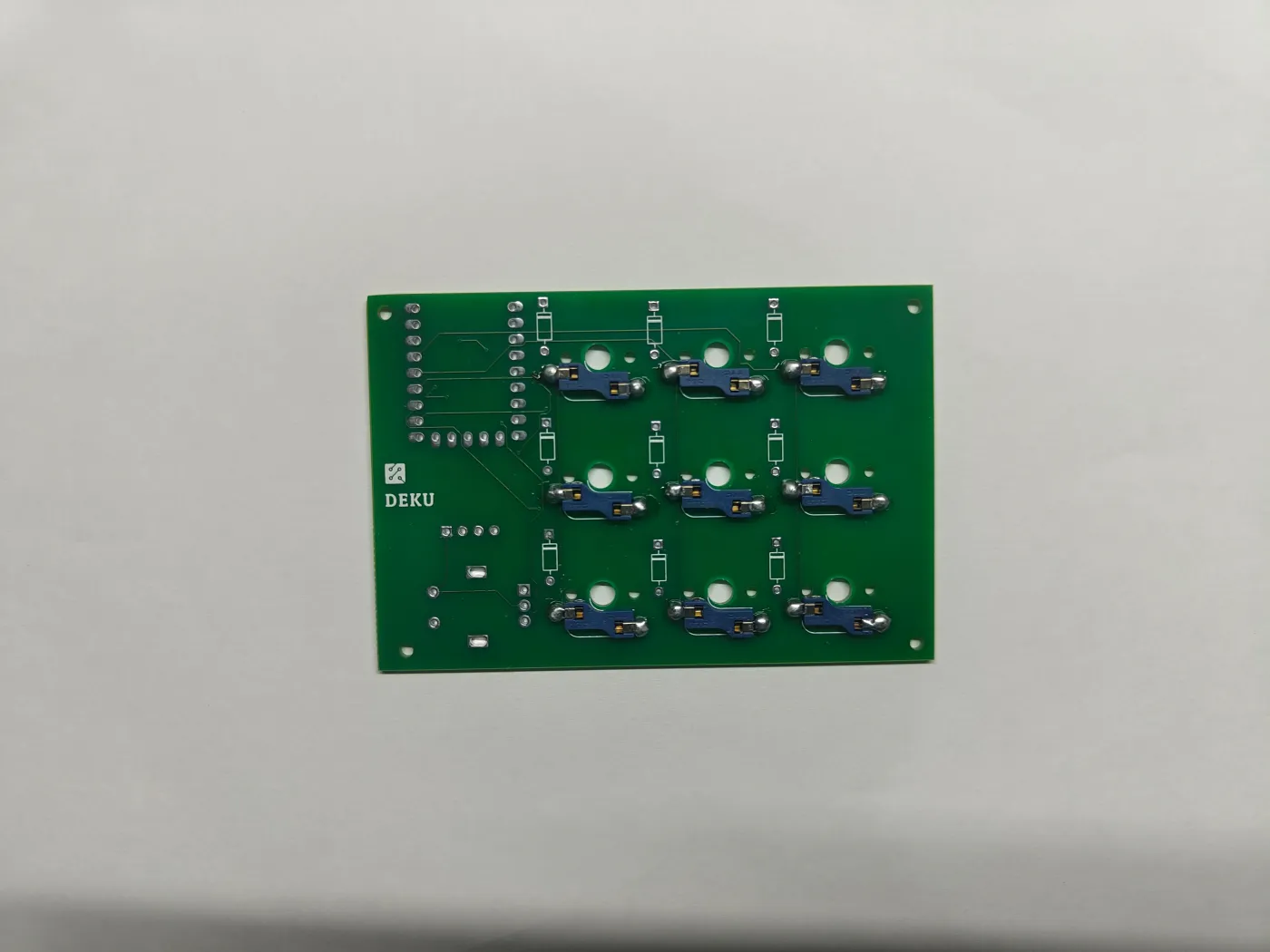
Familiarise yourself with the PCB before soldering. The top side holds the display, encoder, and switch sockets. The bottom side holds the diodes and microcontroller.
PCB overview - step 1PCB overview - step 2
4

Step 1 - Solder the diodes

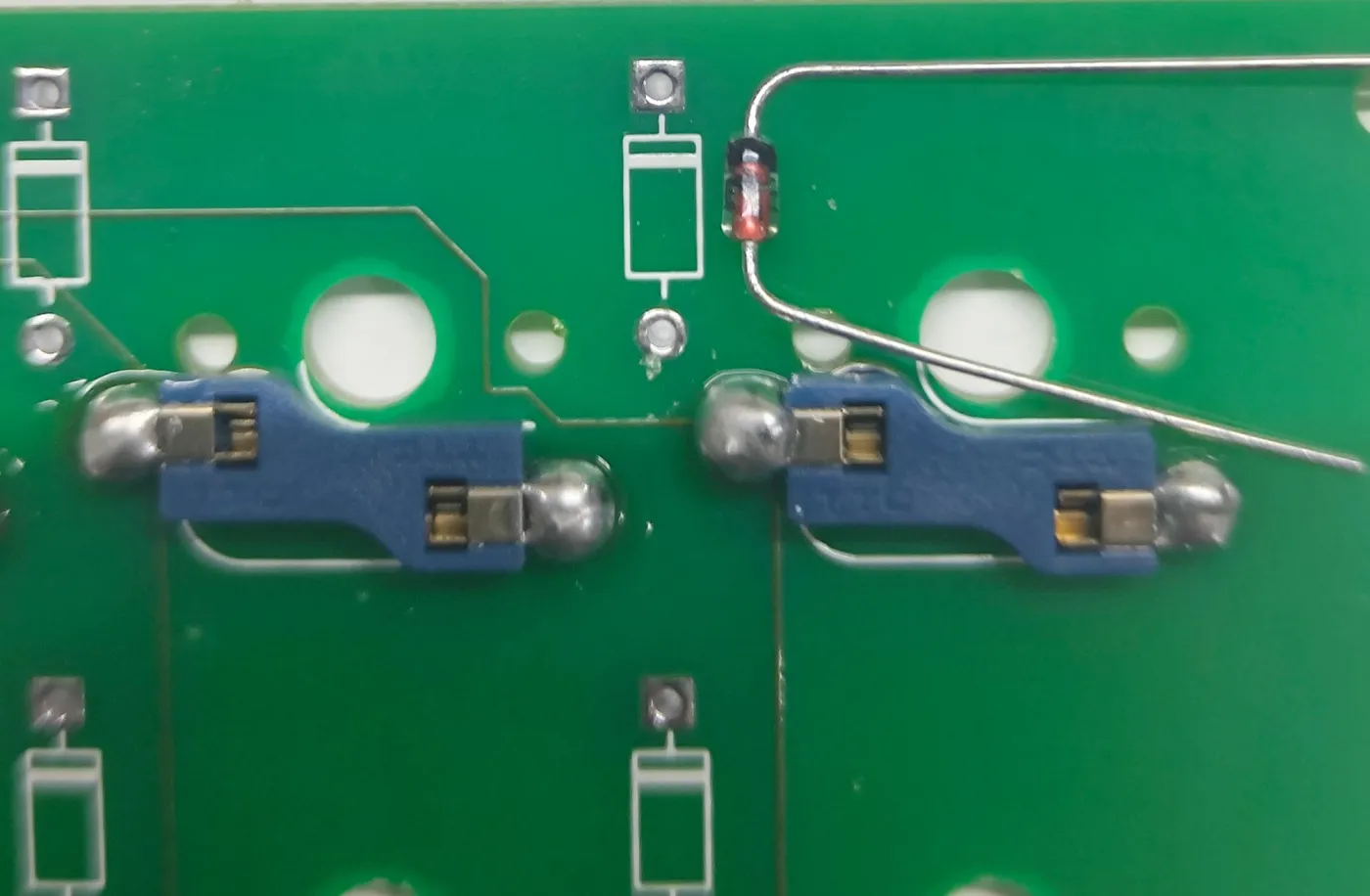
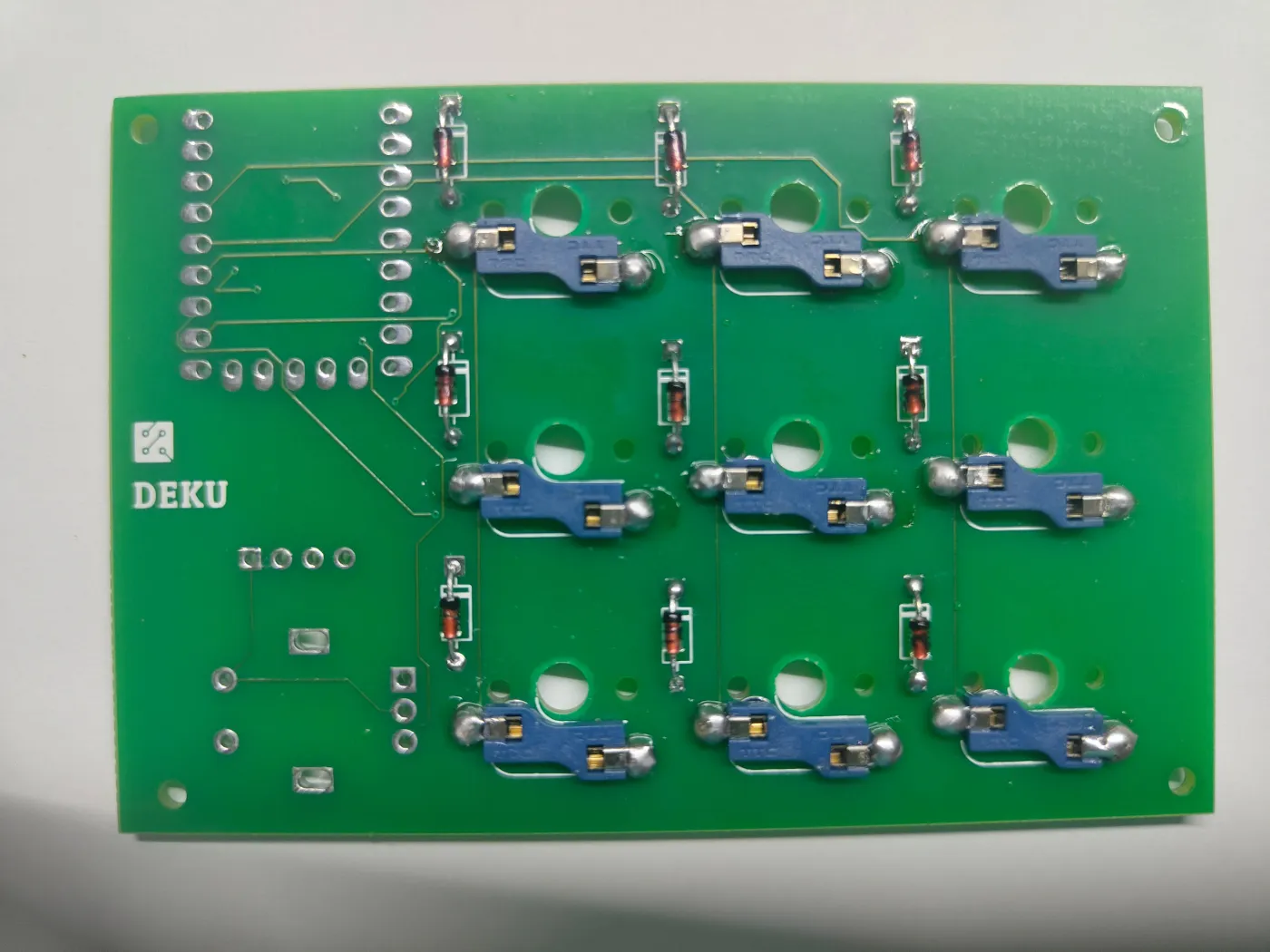
Bend each diode leg at 90 degrees. Every diode has a black stripe on one end - align that stripe with the marking on the PCB silkscreen. Insert all 9, then solder from the top side. Trim the excess leads with pliers.
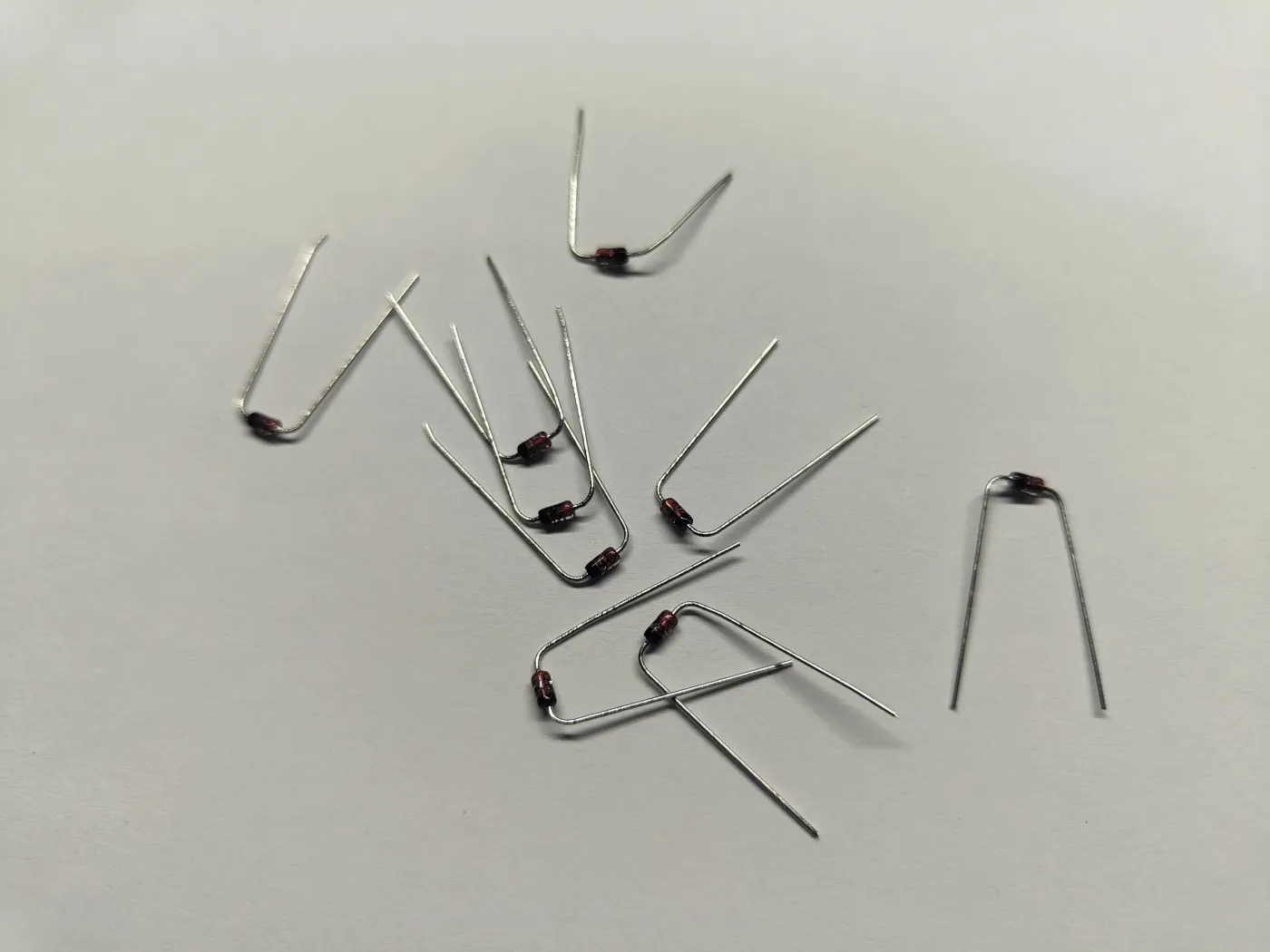
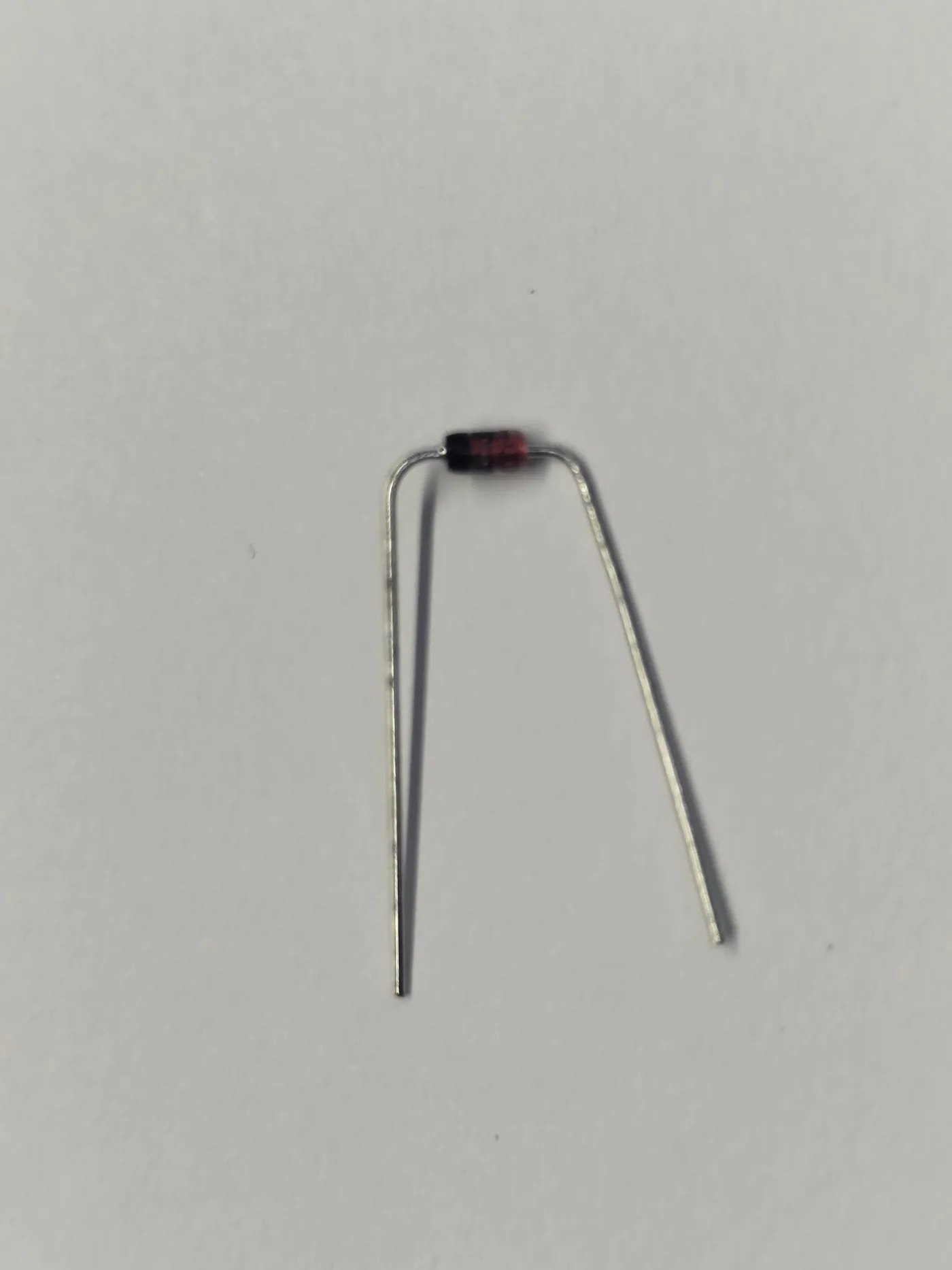
Diode direction matters. The black stripe must align with the PCB marking or the keys will not register.
Step 1 - Solder the diodes - step 1Step 1 - Solder the diodes - step 2Step 1 - Solder the diodes - step 3Step 1 - Solder the diodes - step 4Step 1 - Solder the diodes - step 5
5

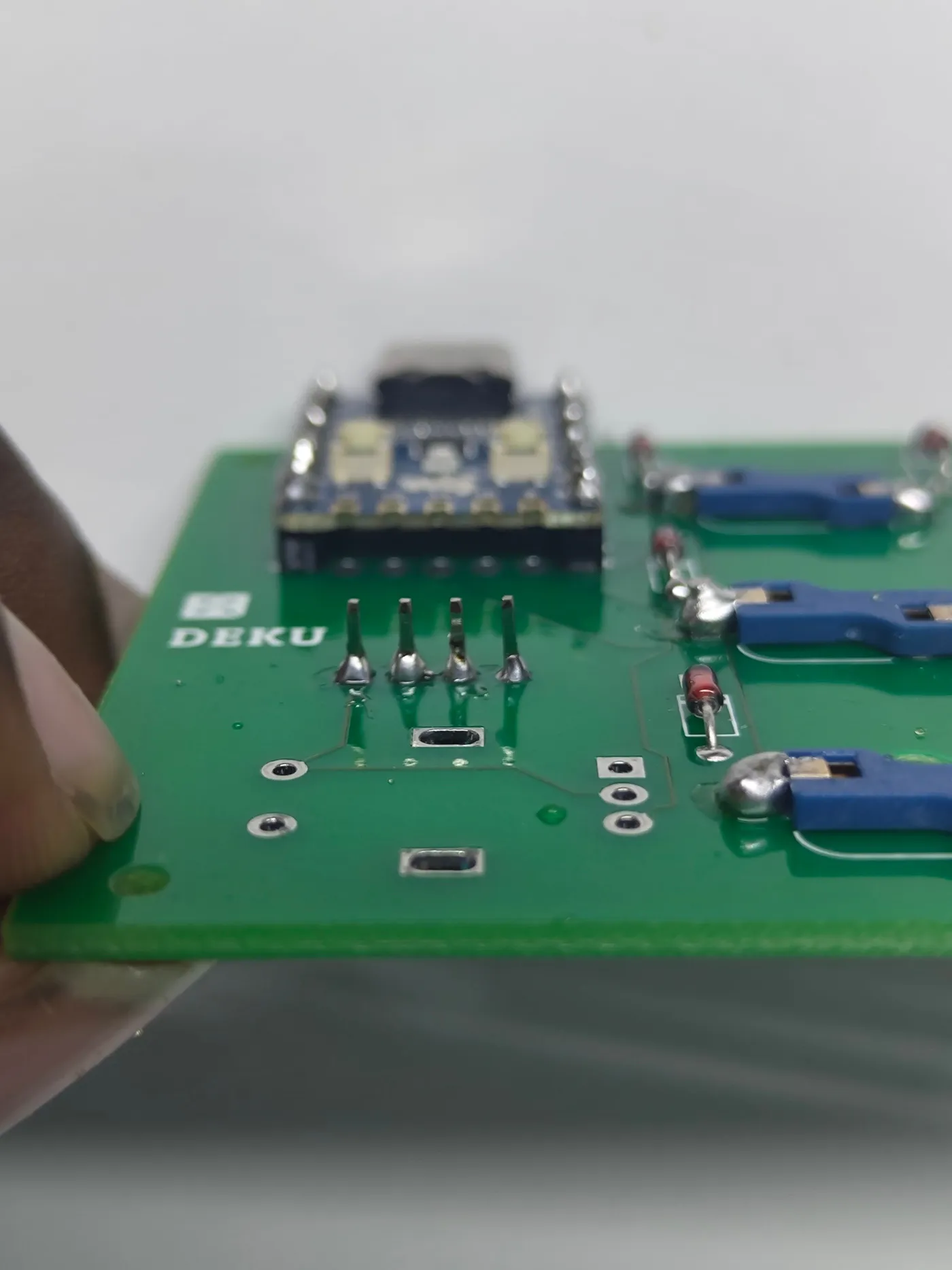
Step 2 - Solder the RP2040 Zero

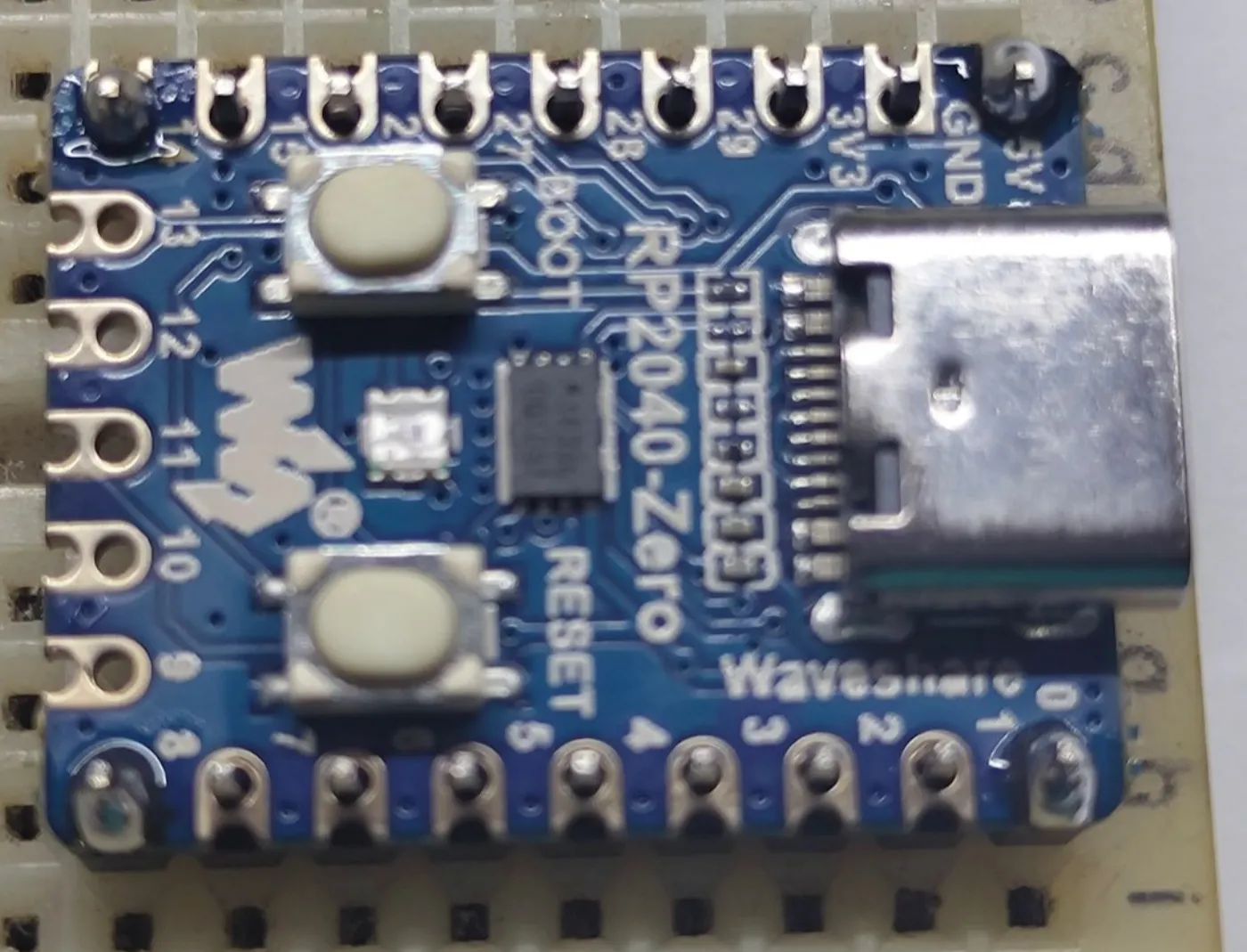
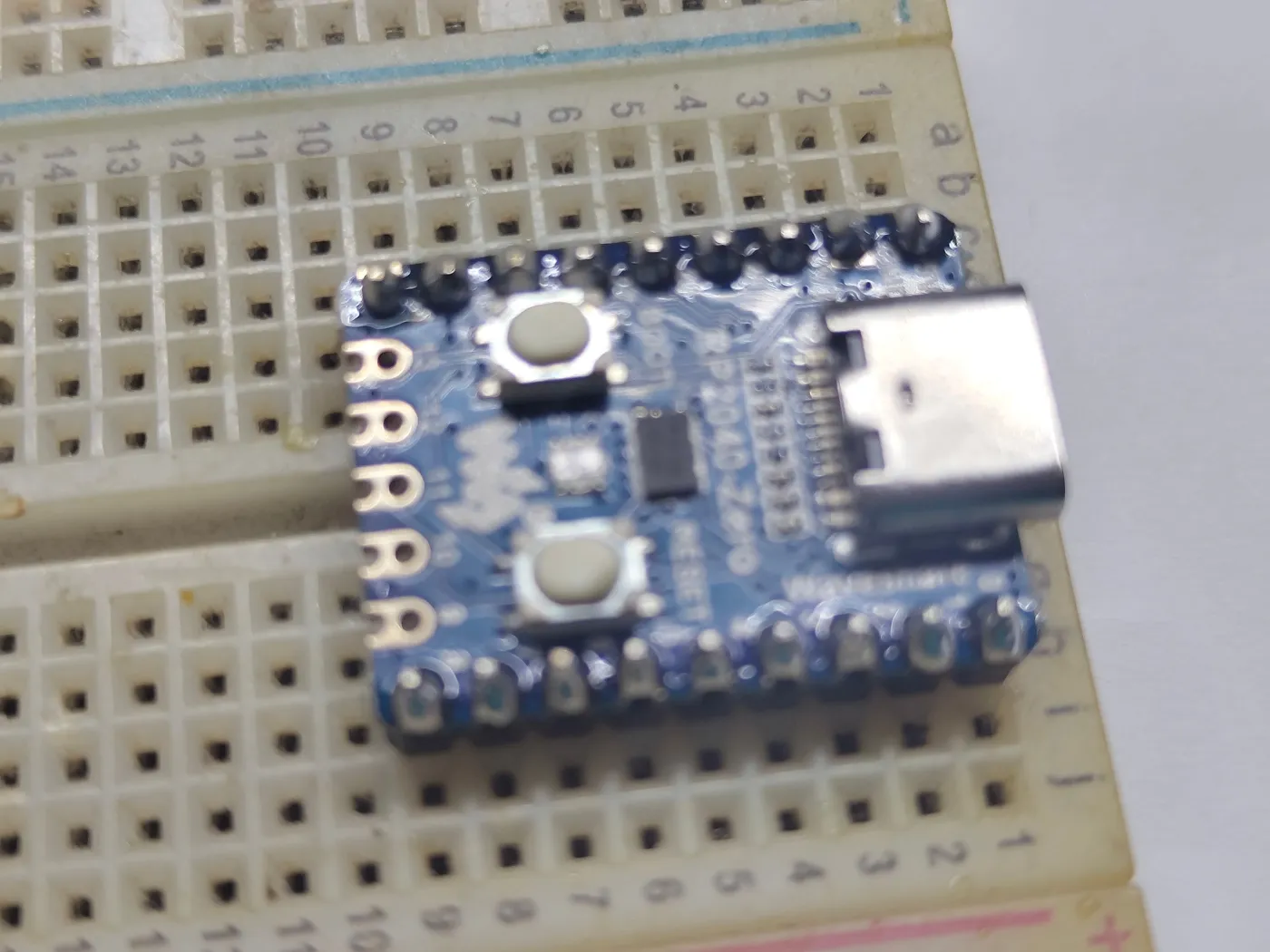
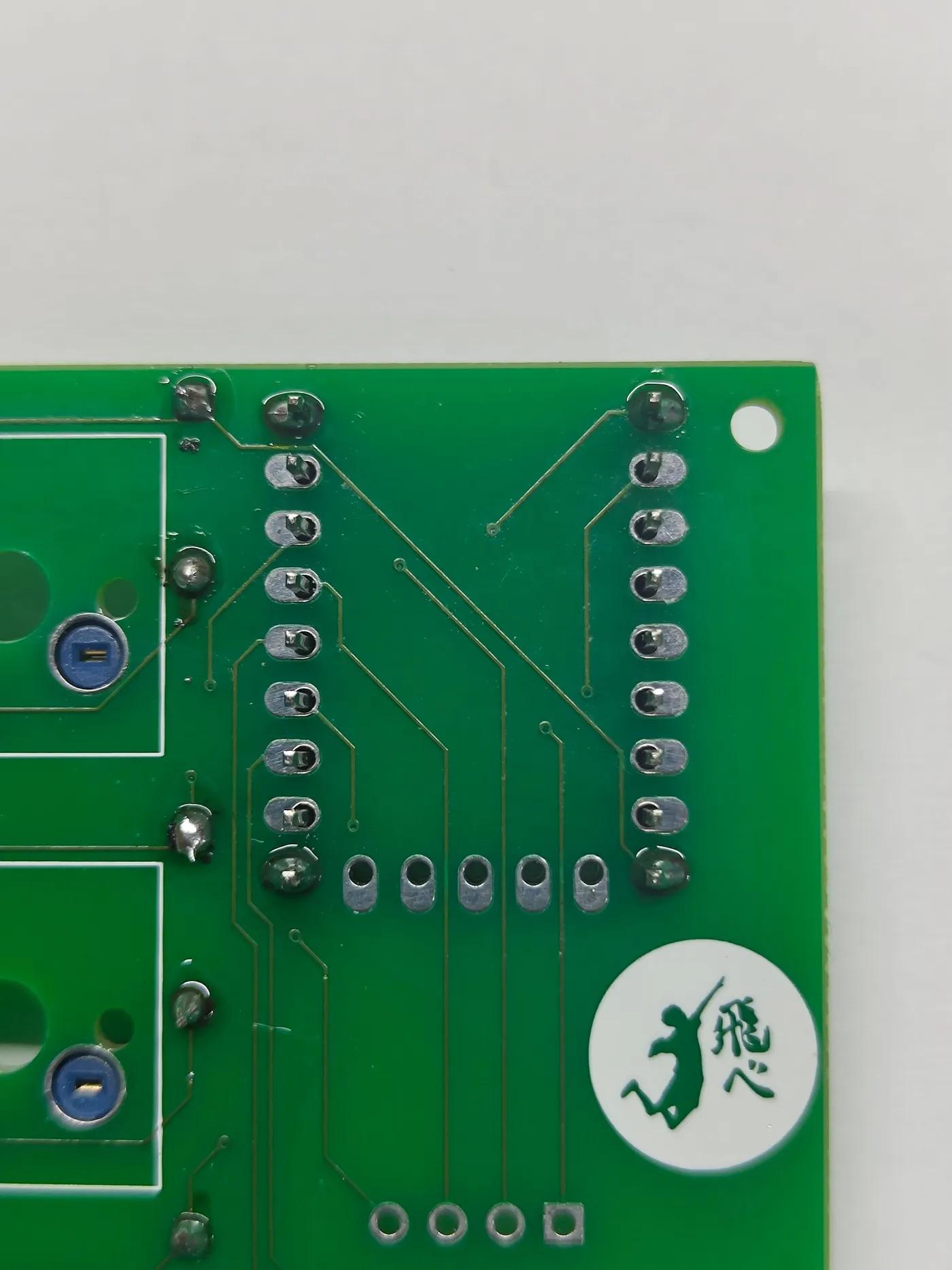
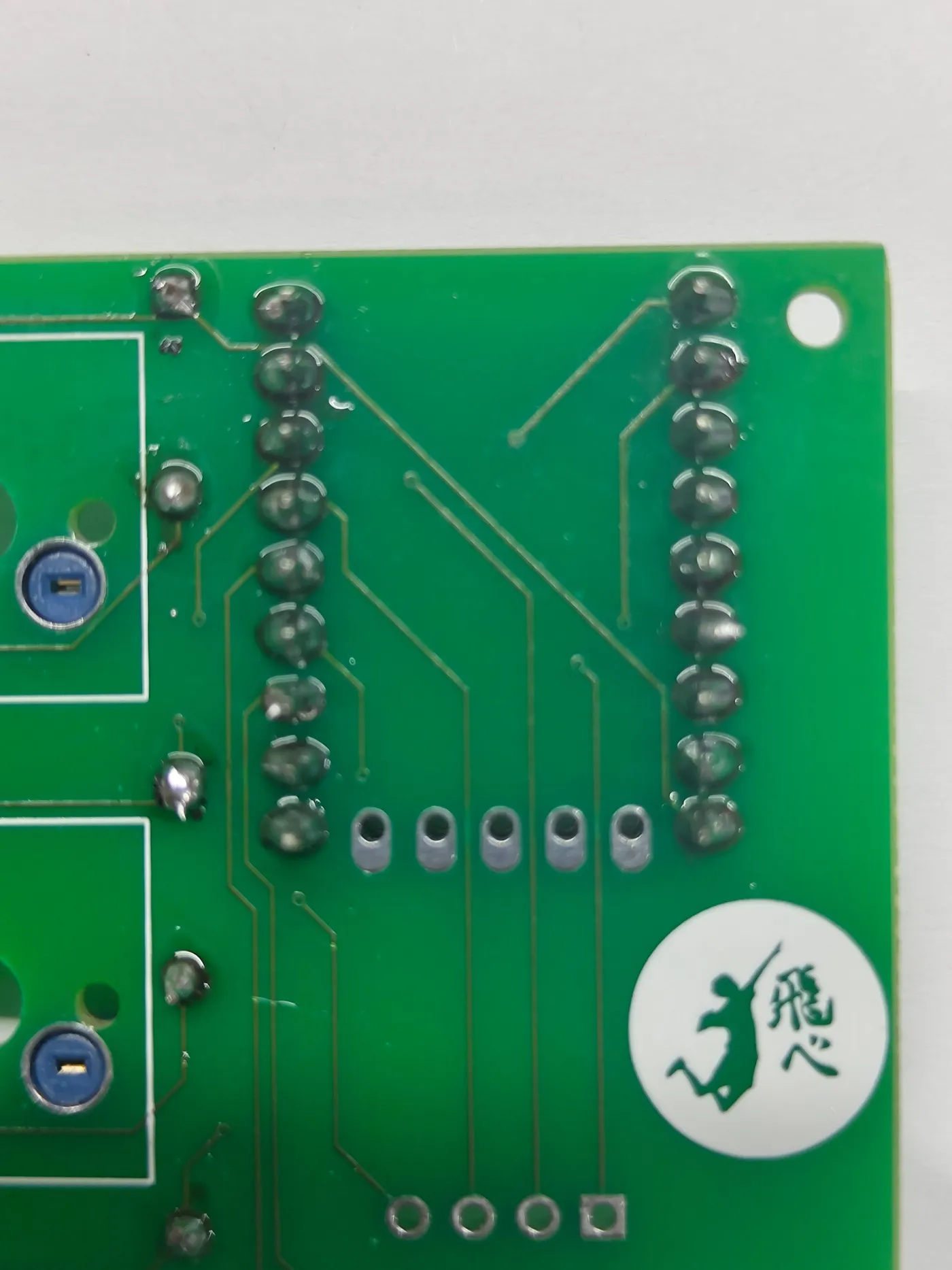
Insert header pins through the RP2040 and hold them upright using a breadboard. Solder the corner pins first to lock the angle, then solder the rest. Remove from the breadboard, insert the RP2040 into the PCB footprint on the bottom side, and solder from the top. Trim any protruding pins.
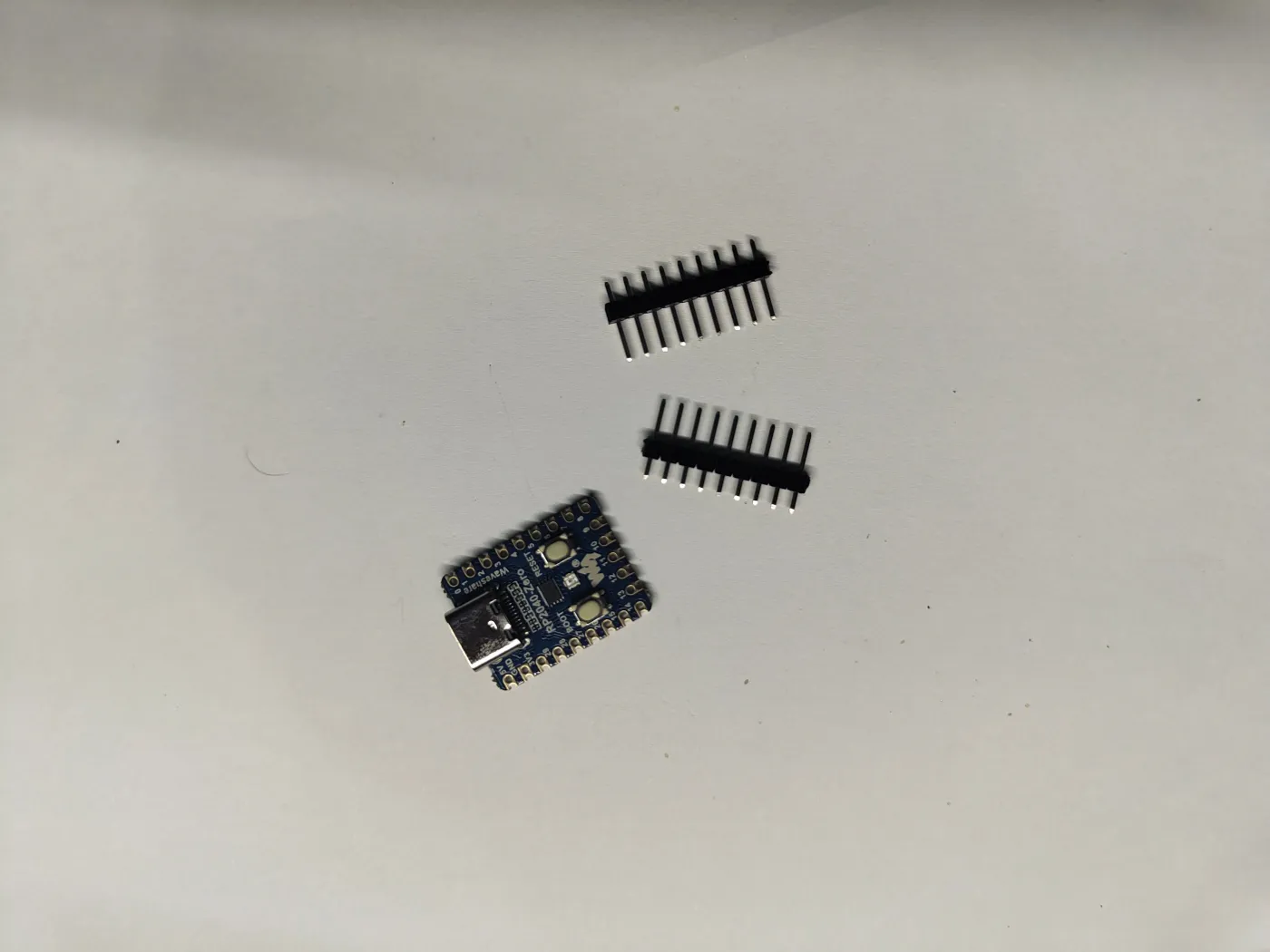
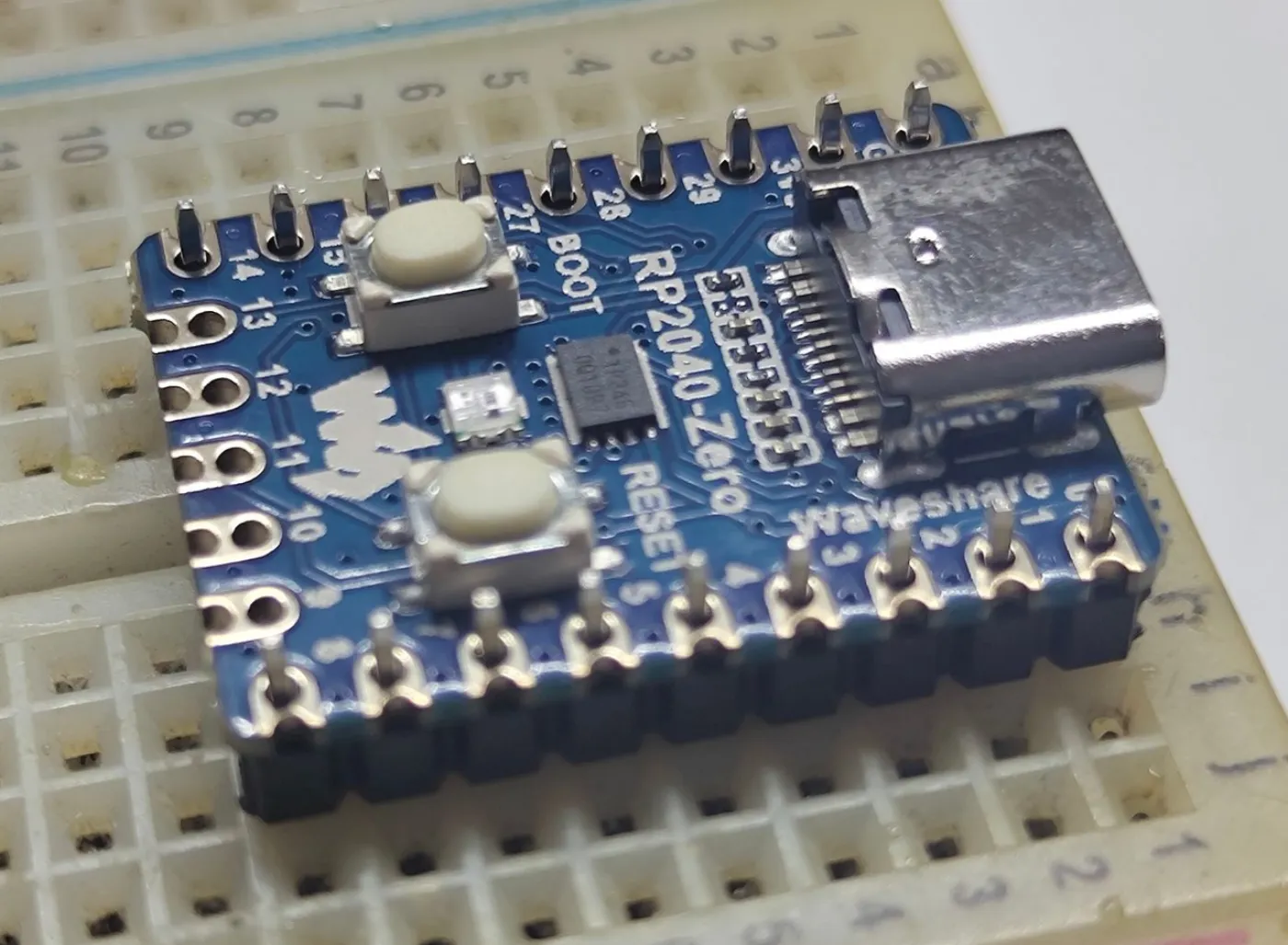
Use a breadboard to keep the header pins perfectly straight while soldering. The solder side is the bottom of the PCB.
Step 2 - Solder the RP2040 Zero - step 1Step 2 - Solder the RP2040 Zero - step 2Step 2 - Solder the RP2040 Zero - step 3Step 2 - Solder the RP2040 Zero - step 4Step 2 - Solder the RP2040 Zero - step 5Step 2 - Solder the RP2040 Zero - step 6Step 2 - Solder the RP2040 Zero - step 7Step 2 - Solder the RP2040 Zero - step 8
6

Step 3 - OLED display

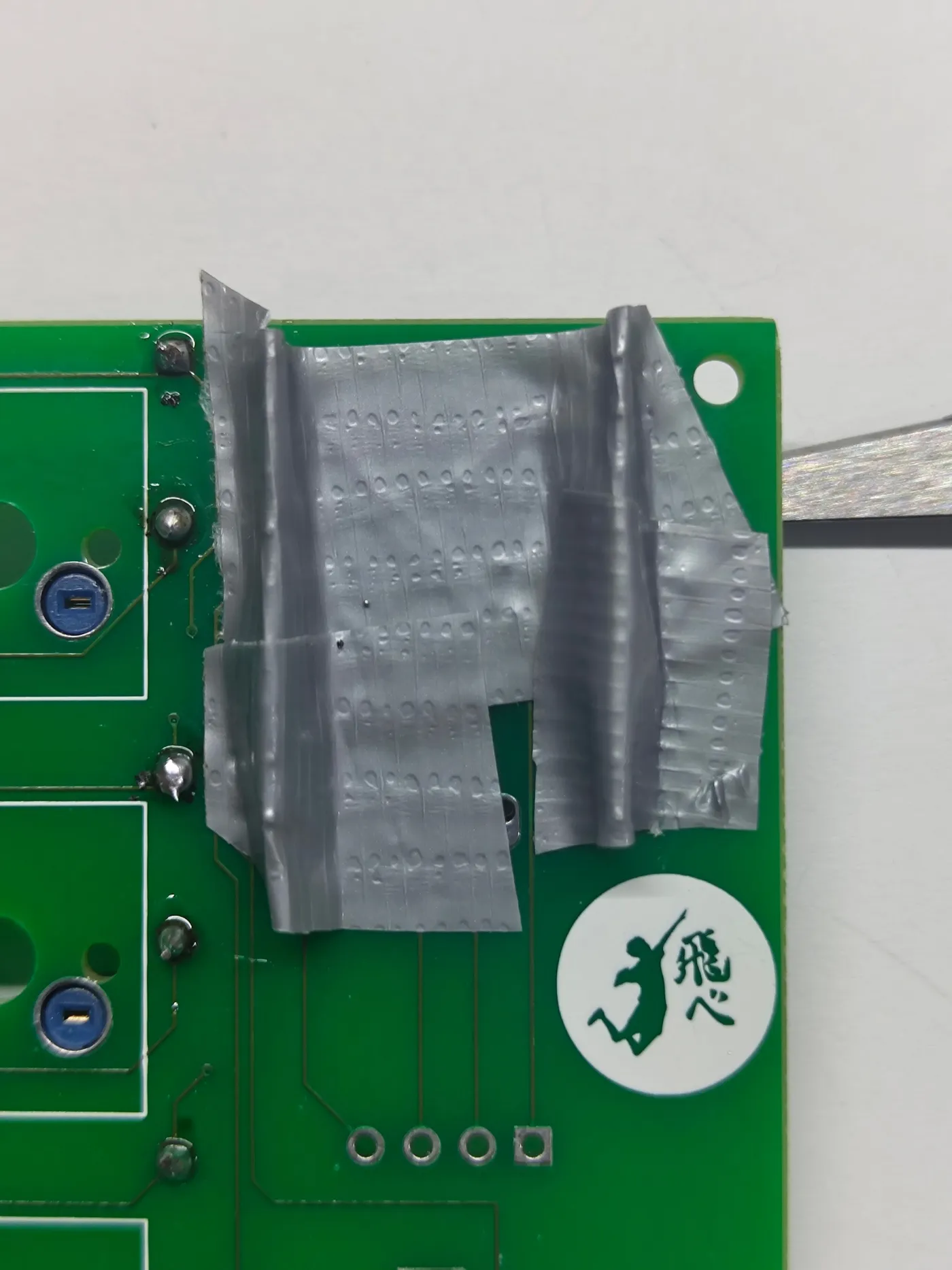
Insert the I2C OLED display into the header on the top side of the PCB. Check the orientation matches the silkscreen, then solder from the bottom. Trim the pin stubs with pliers.
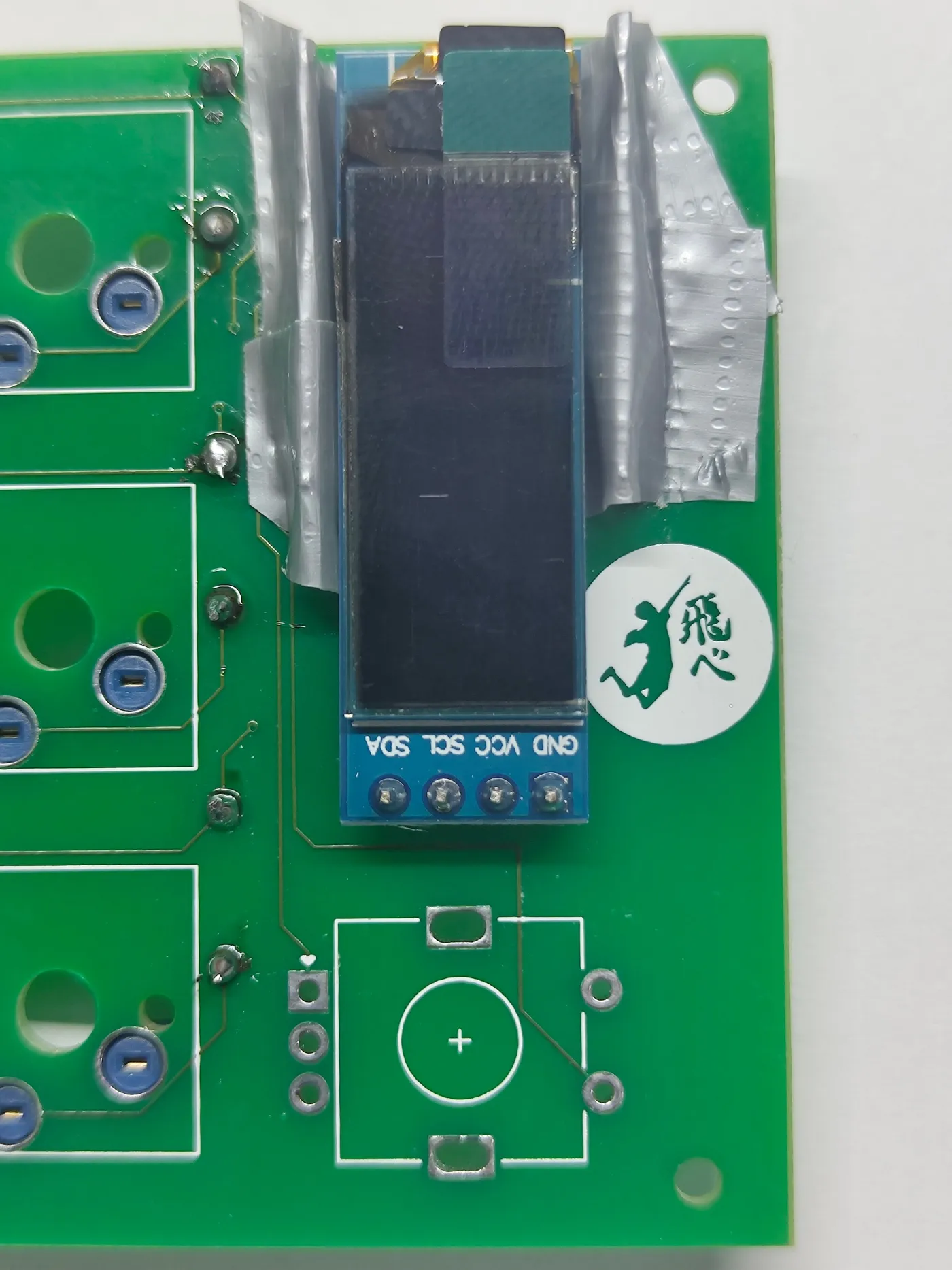
The OLED has a specific orientation - confirm it matches the PCB marking before soldering.
Step 3 - OLED display - step 1Step 3 - OLED display - step 2
7

Step 4 - Rotary encoder

Insert the rotary encoder into the PCB in the correct orientation and solder from the bottom side.
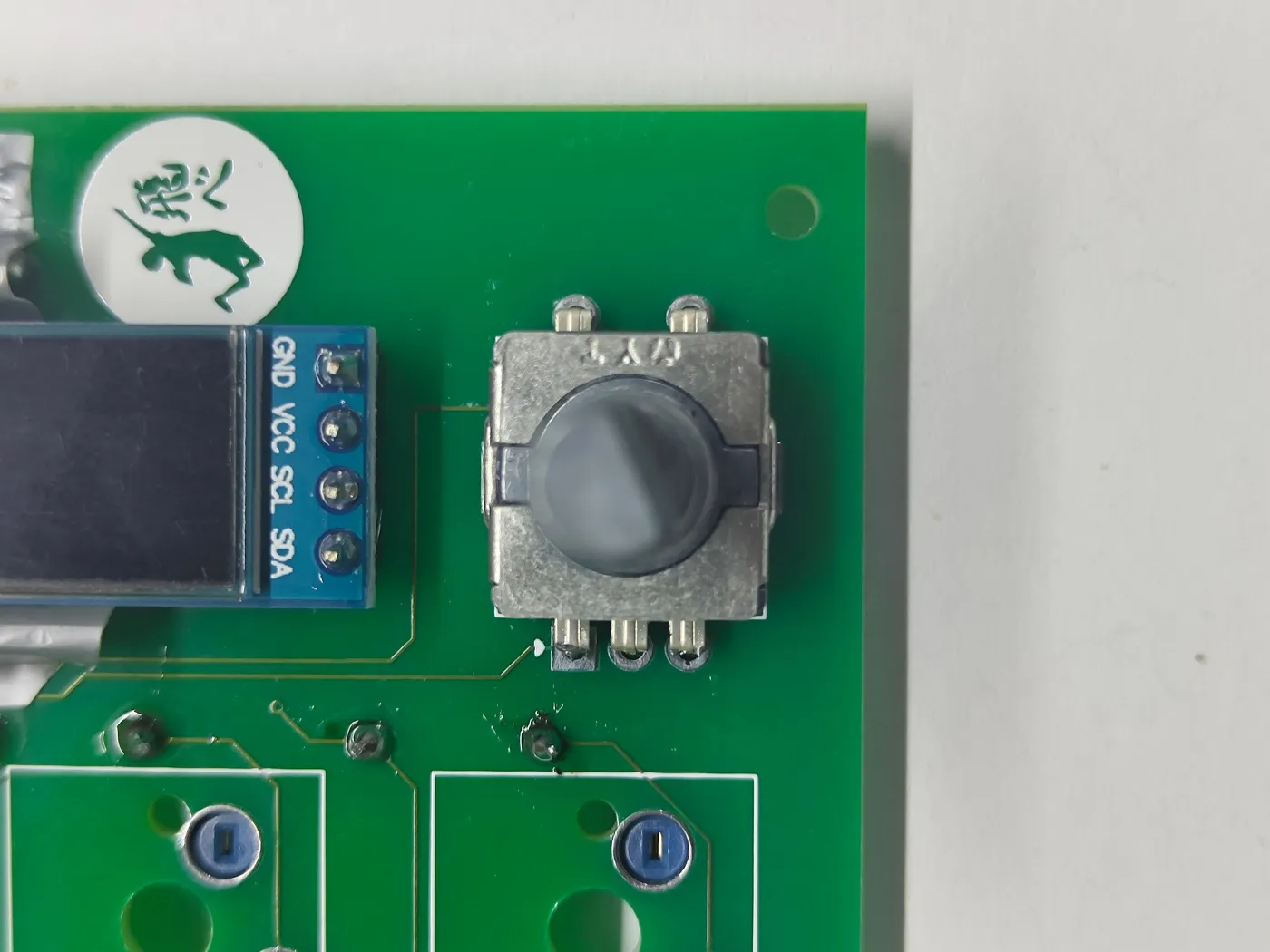
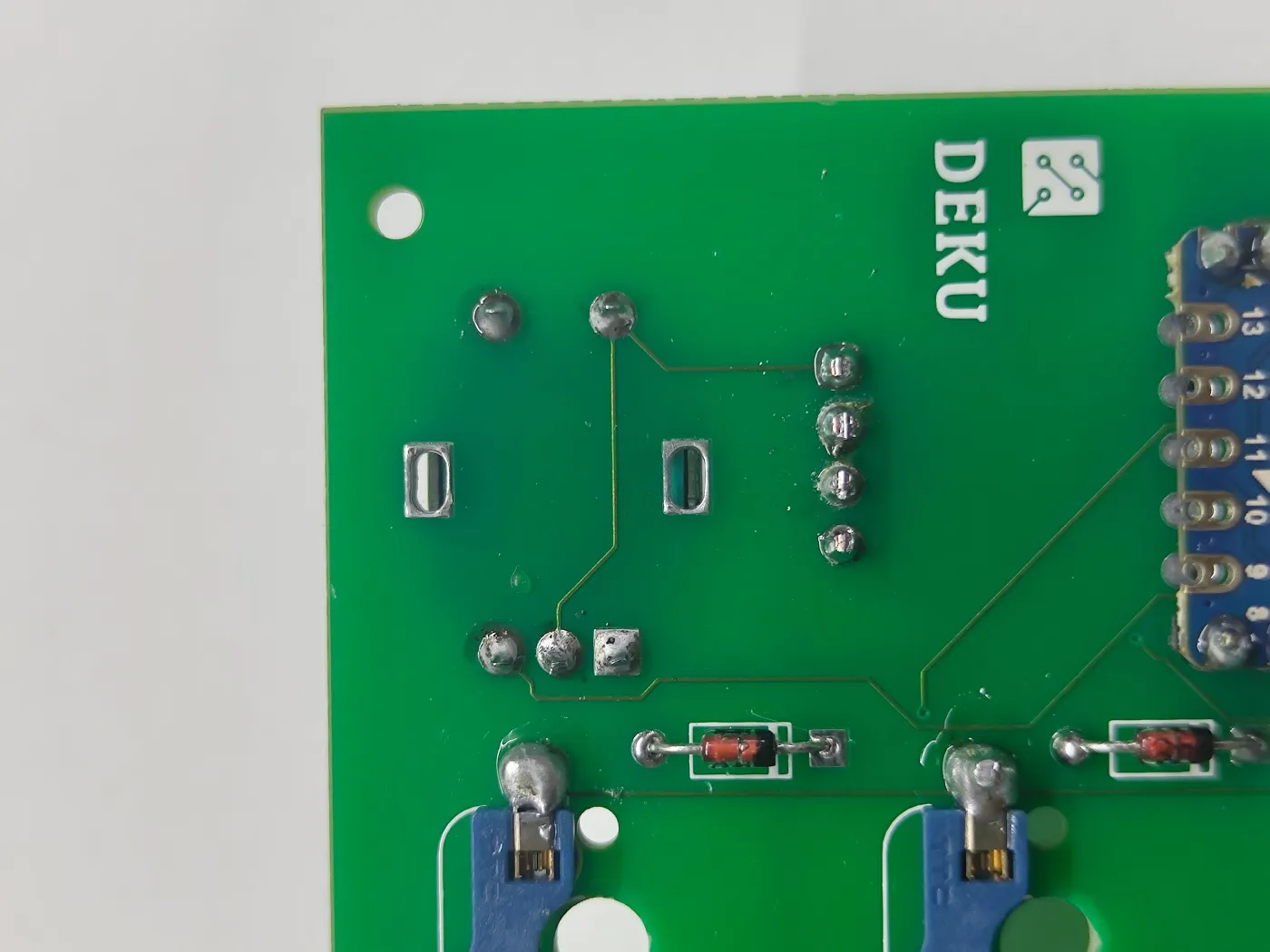
Step 4 - Rotary encoder - step 1Step 4 - Rotary encoder - step 2Step 4 - Rotary encoder - step 3Step 4 - Rotary encoder - step 4
8

Flash firmware

Before assembling the case, flash QMK firmware. Hold the BOOT button on the RP2040, connect USB-C, then release. The board appears as a USB drive - drag the compiled .uf2 firmware file onto it. Alternatively, compile with QMK and use qmk flash.

Flash before closing the case - once assembled it is harder to reach the BOOT button.
9

Final assembly - mount the PCB

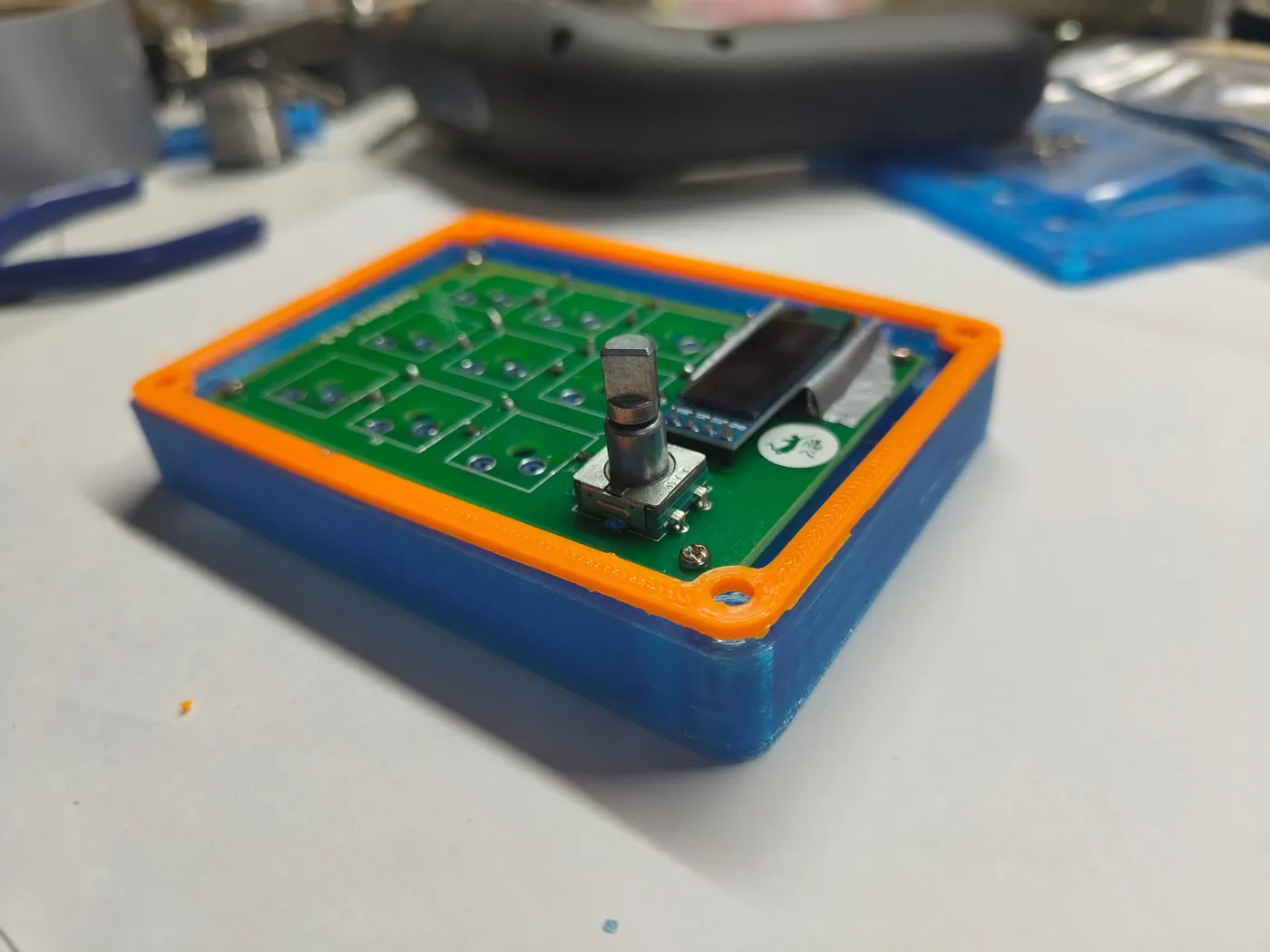
Take the 3D-printed base piece. Insert the PCB with the USB-C port facing out through the cutout.
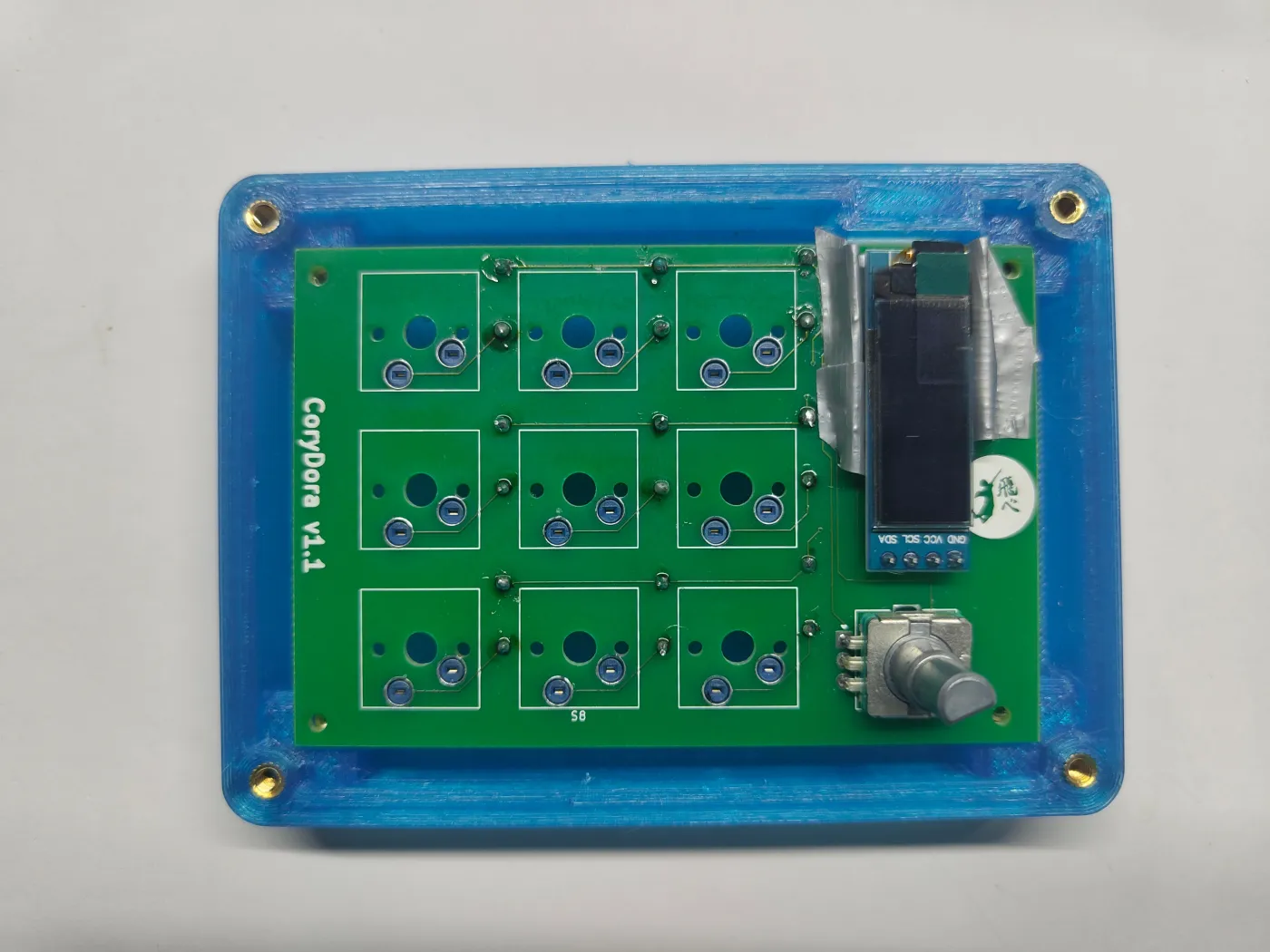
Final assembly - mount the PCB - step 1
10

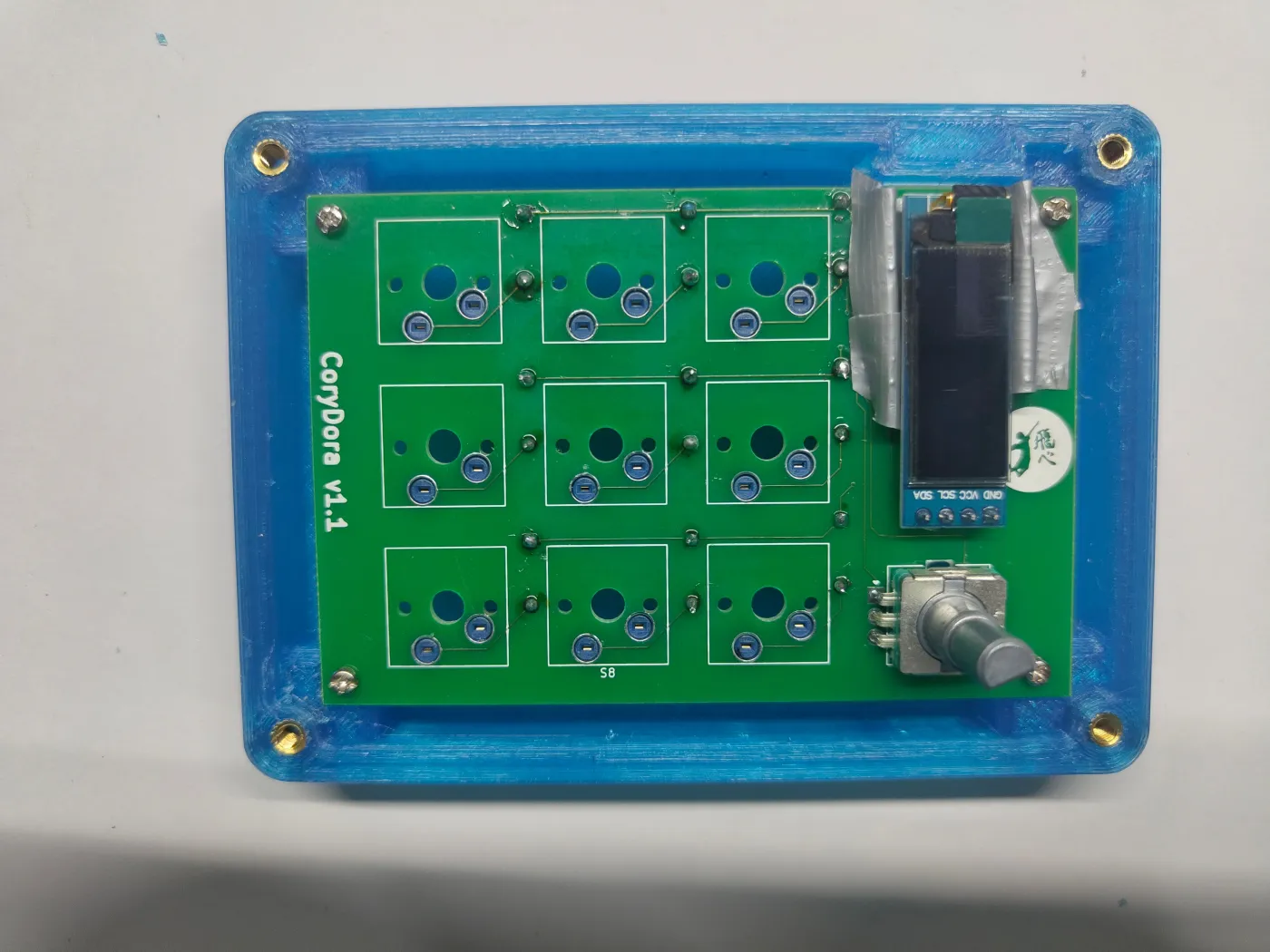
Final assembly - secure with small screws

Align the PCB holes with the standoffs in the base and fasten with the M2 (small) screws.
Final assembly - secure with small screws - step 1
11

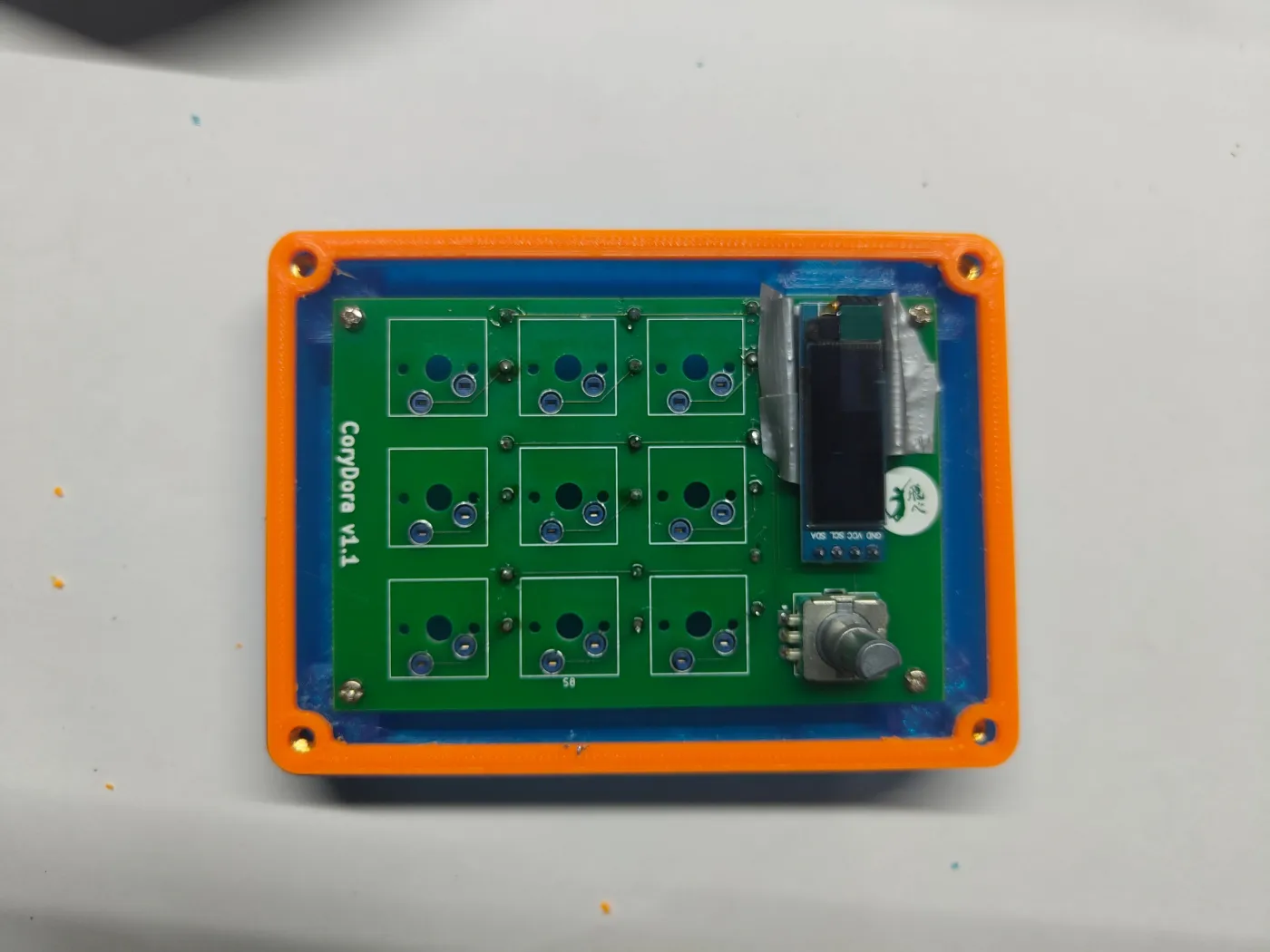
Final assembly - attach the trim ring

Snap the trim piece around the PCB edge.
Final assembly - attach the trim ring - step 1Final assembly - attach the trim ring - step 2
12

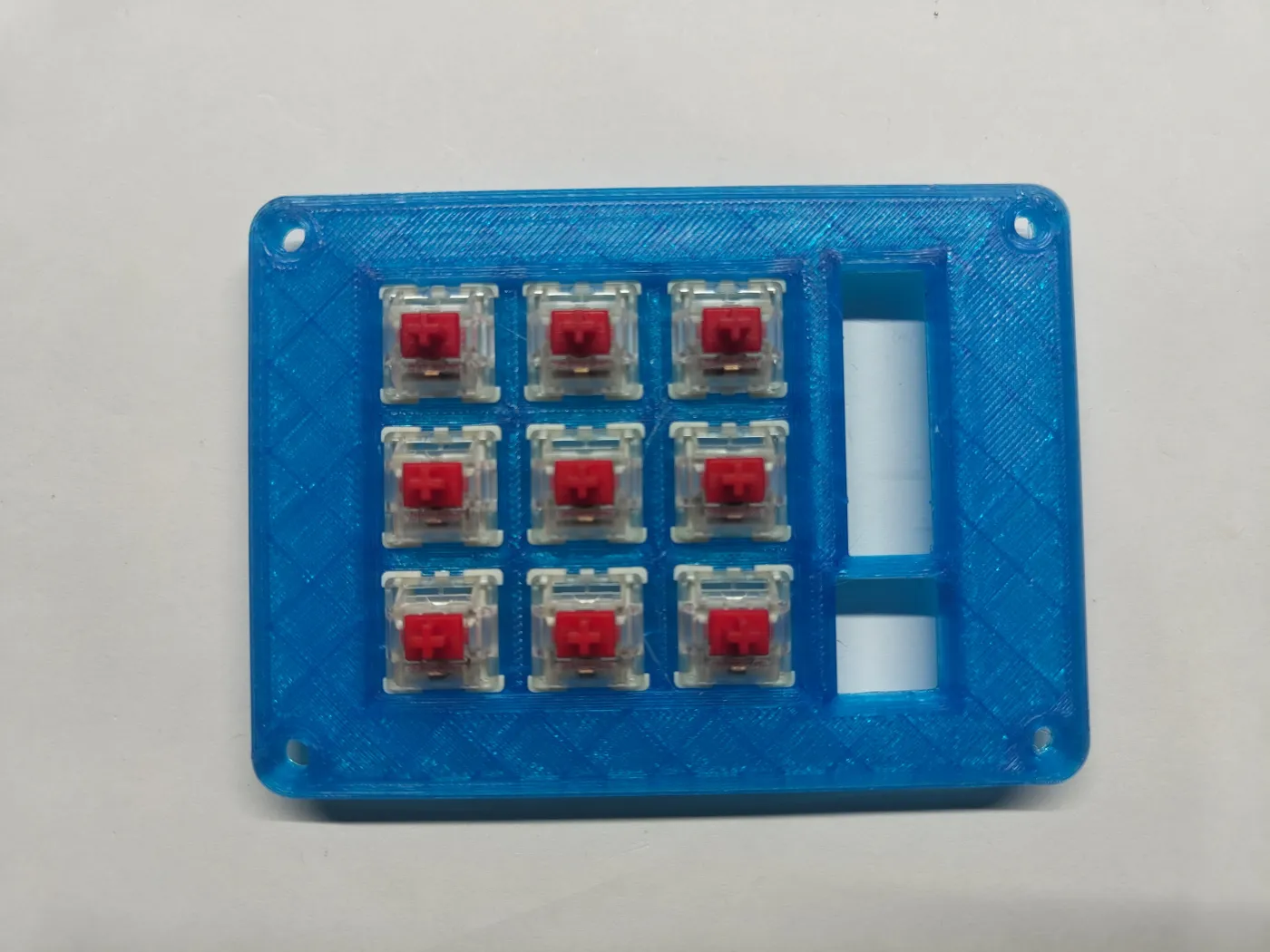
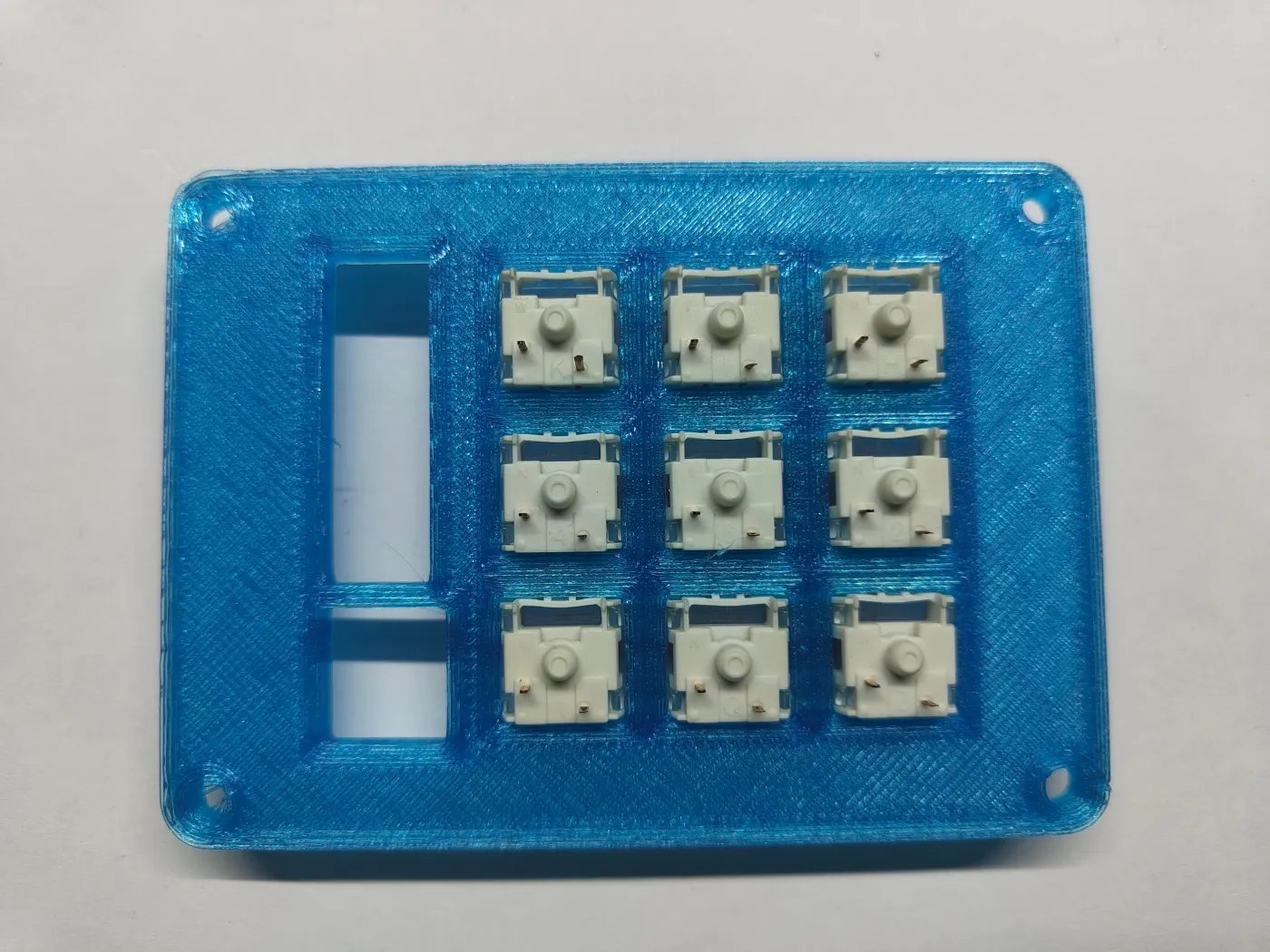
Final assembly - insert switches and top case

Place switches pin-side down into each hotswap socket - do not force them. Then set the top case piece on top and secure with the M2.5 (larger) screws.
Do not overtighten the screws on the 3D-printed case - snug is enough.
Final assembly - insert switches and top case - step 1Final assembly - insert switches and top case - step 2

Getting Started

Your CoryDora ships pre-flashed and ready. This guide covers inserting switches, attaching keycaps, and remapping keys with VIA.

1

Unbox

Your package contains an unpopulated CoryDora (PCB assembled, no switches), a bag of mechanical switches, and keycaps. Remove the board from its packaging.
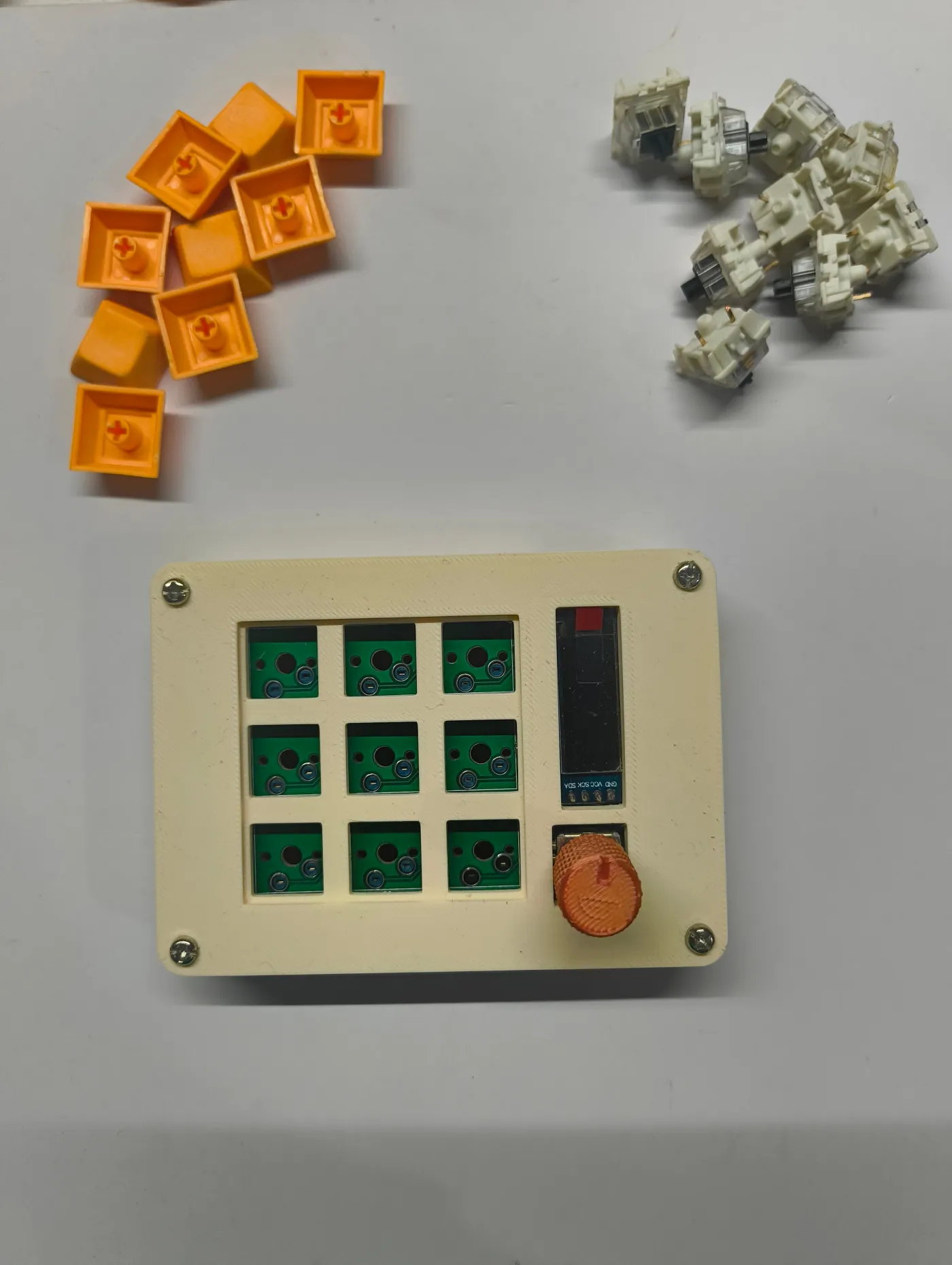
Unbox - step 1
2

Insert the switches

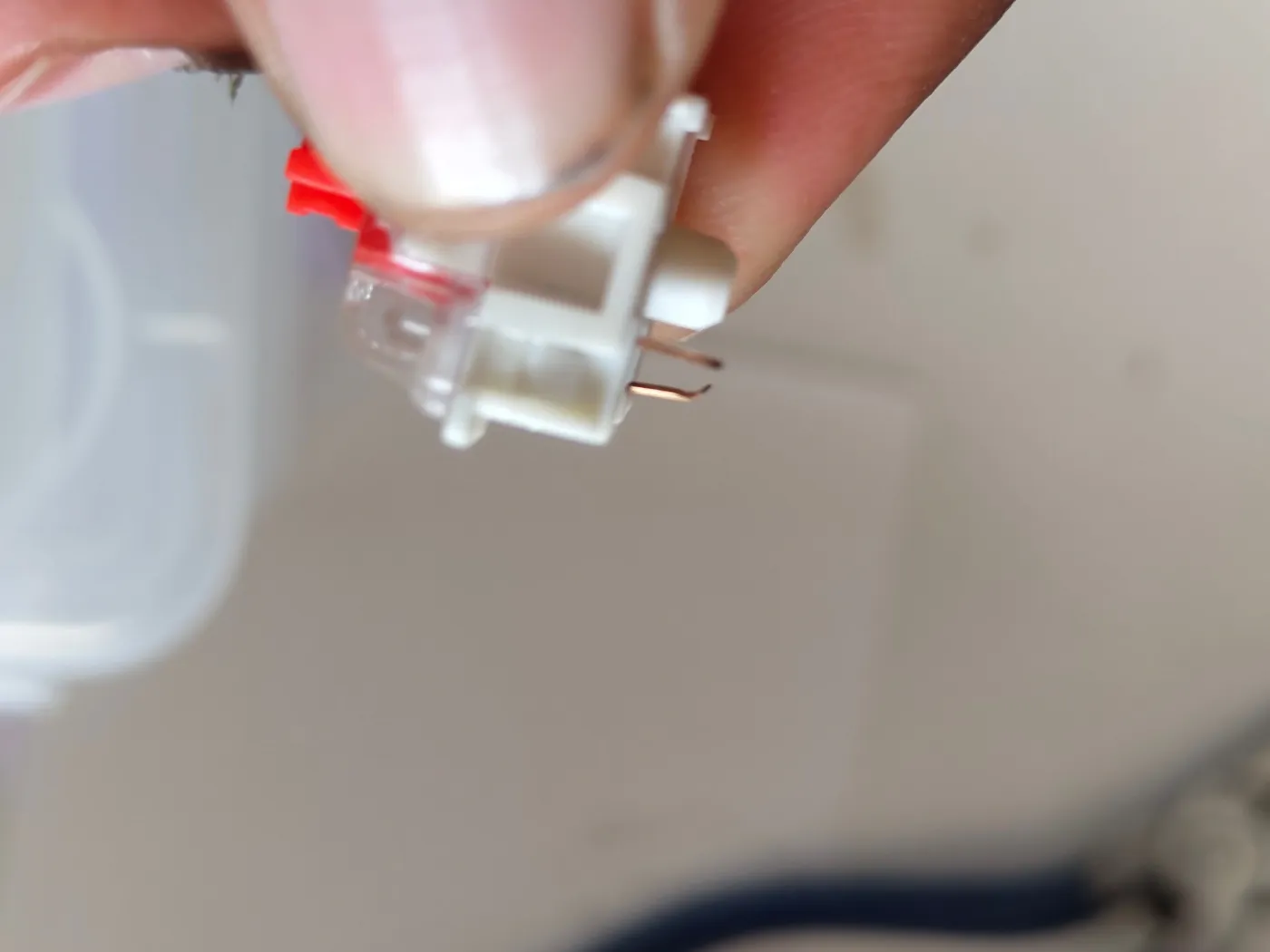
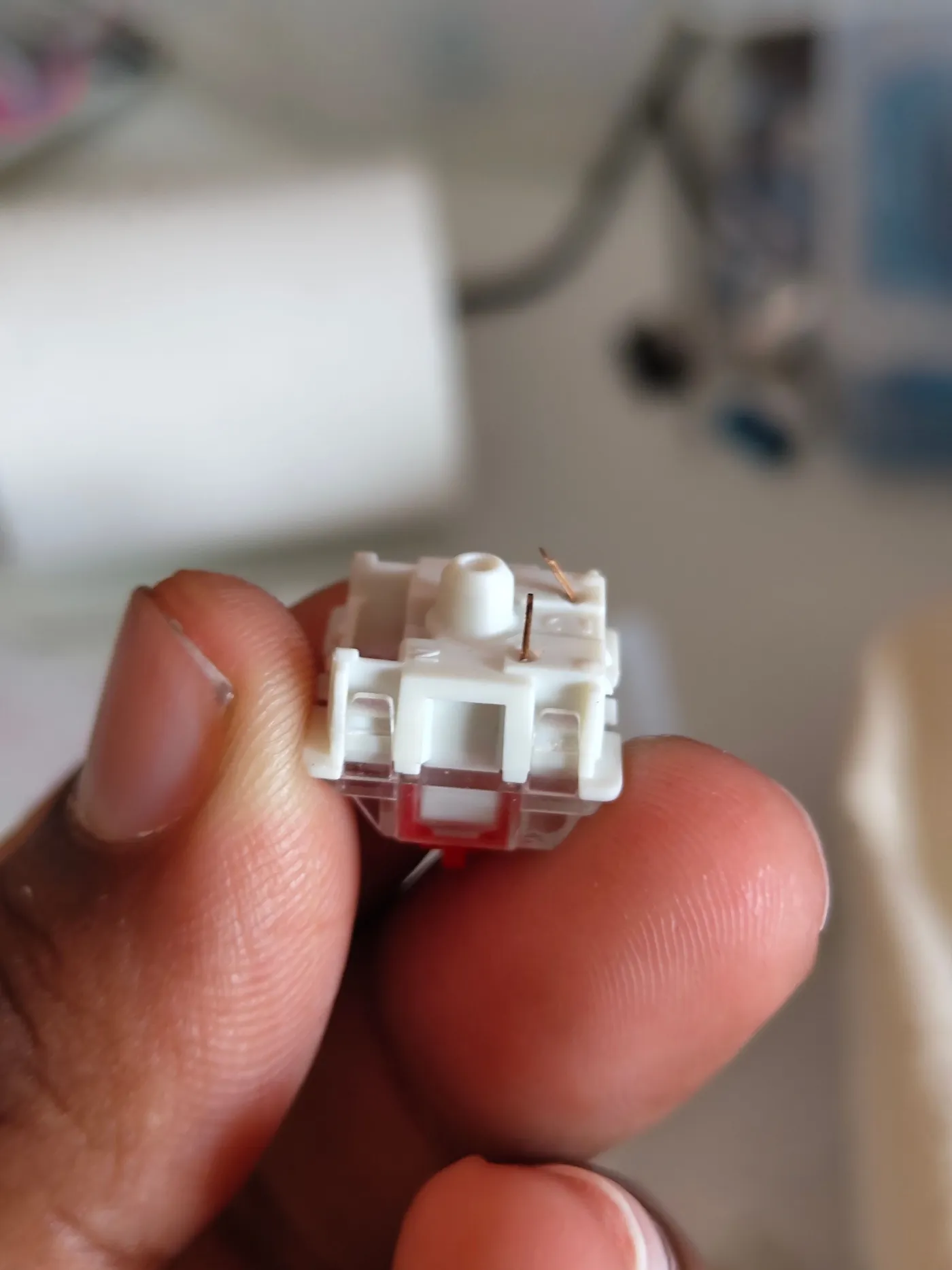
Align each switch so its two pins point down into the hotswap sockets. Press firmly and evenly until it clicks. If a pin gets bent, straighten it with tweezers before reinserting.
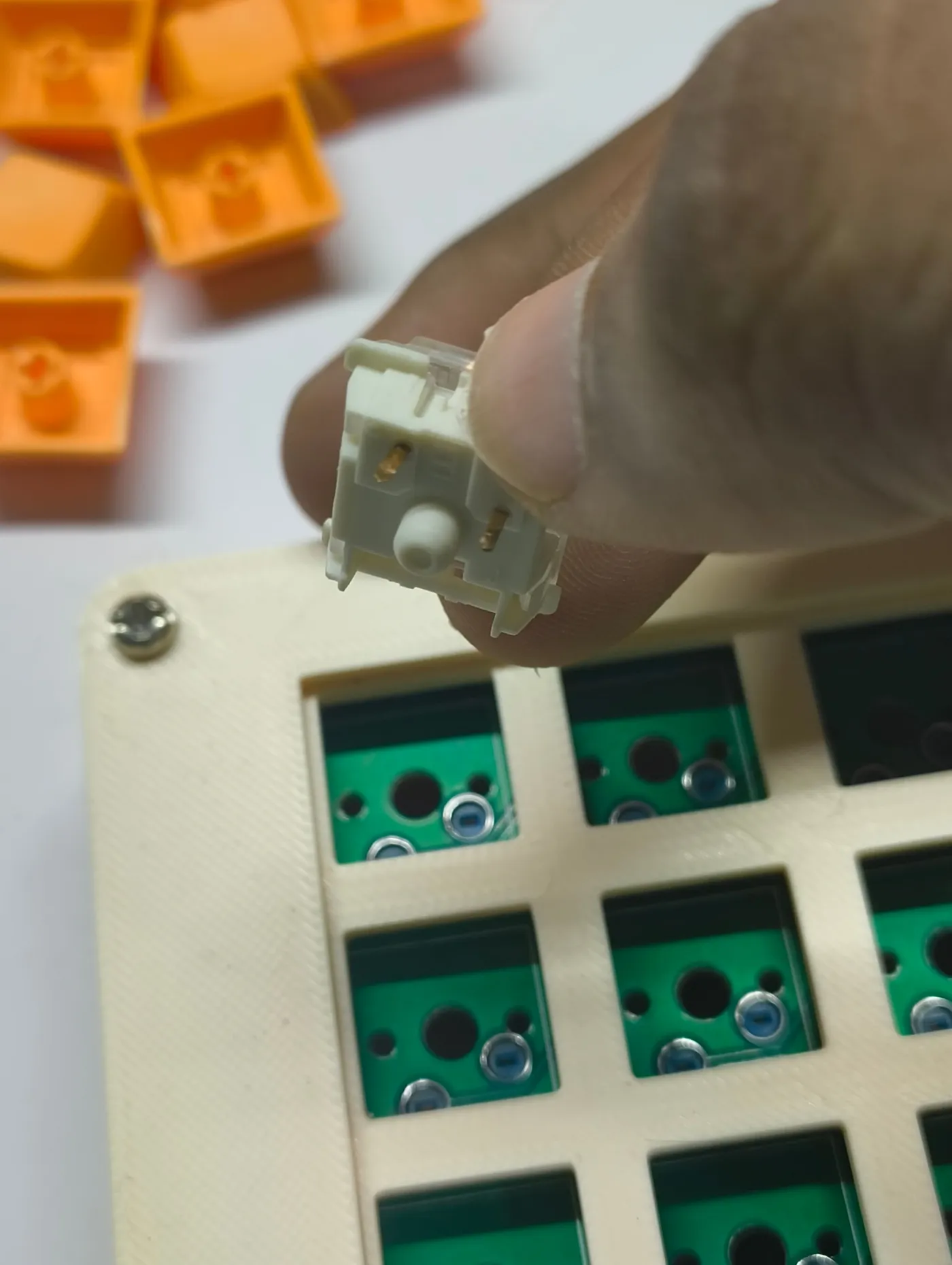
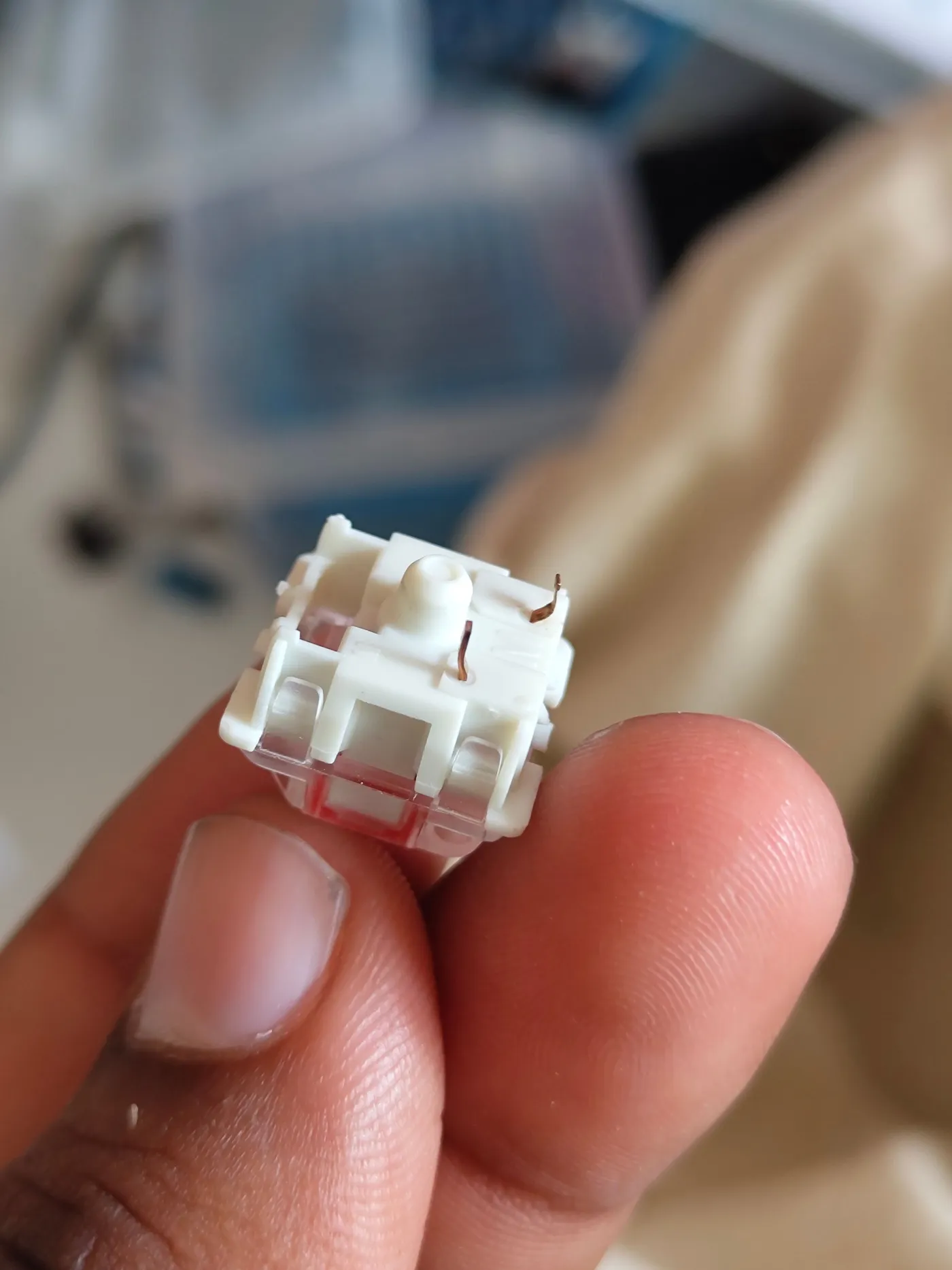
Insert gently - forcing a bent pin through a hotswap socket damages the socket.
Insert the switches - step 1Insert the switches - step 2Insert the switches - step 3Insert the switches - step 4
3

Attach keycaps

Press each keycap down onto its switch stem until it seats. Insert all switches first, then cap them all.

4

Remap with VIA

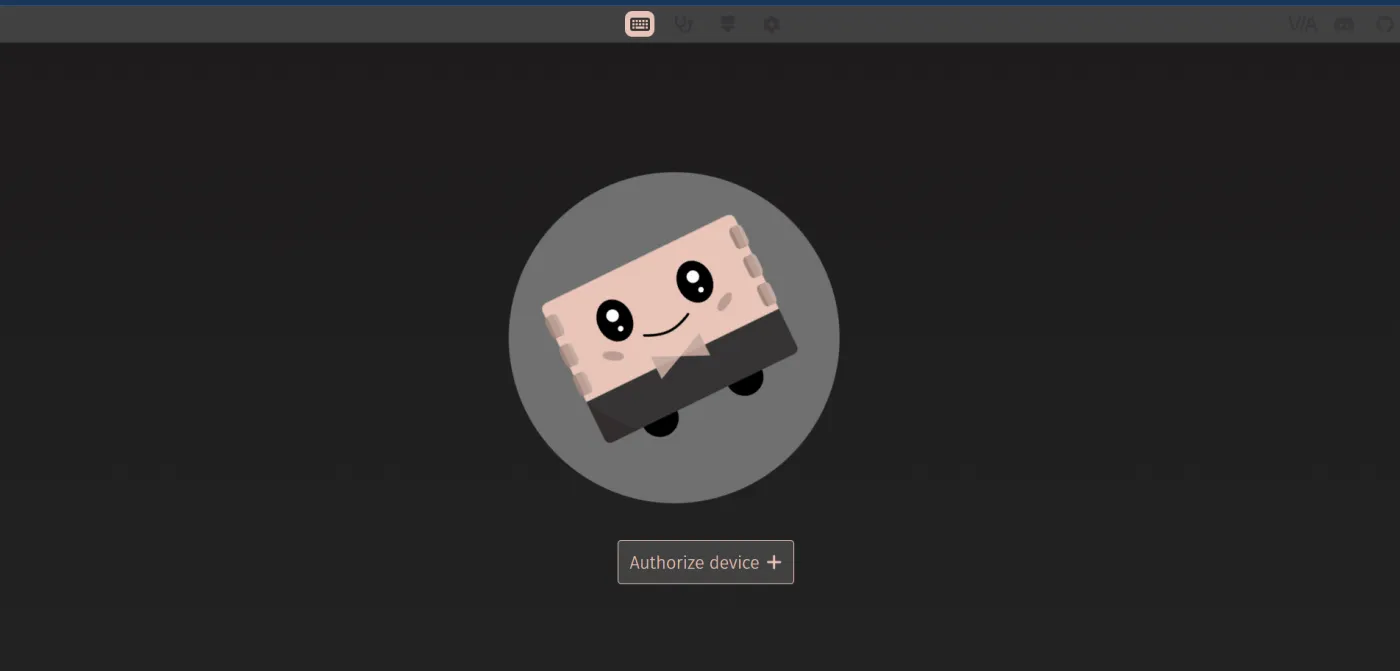
Plug CoryDora in, then visit usevia.app. Click Authorize Device and select CoryDora from the browser popup.
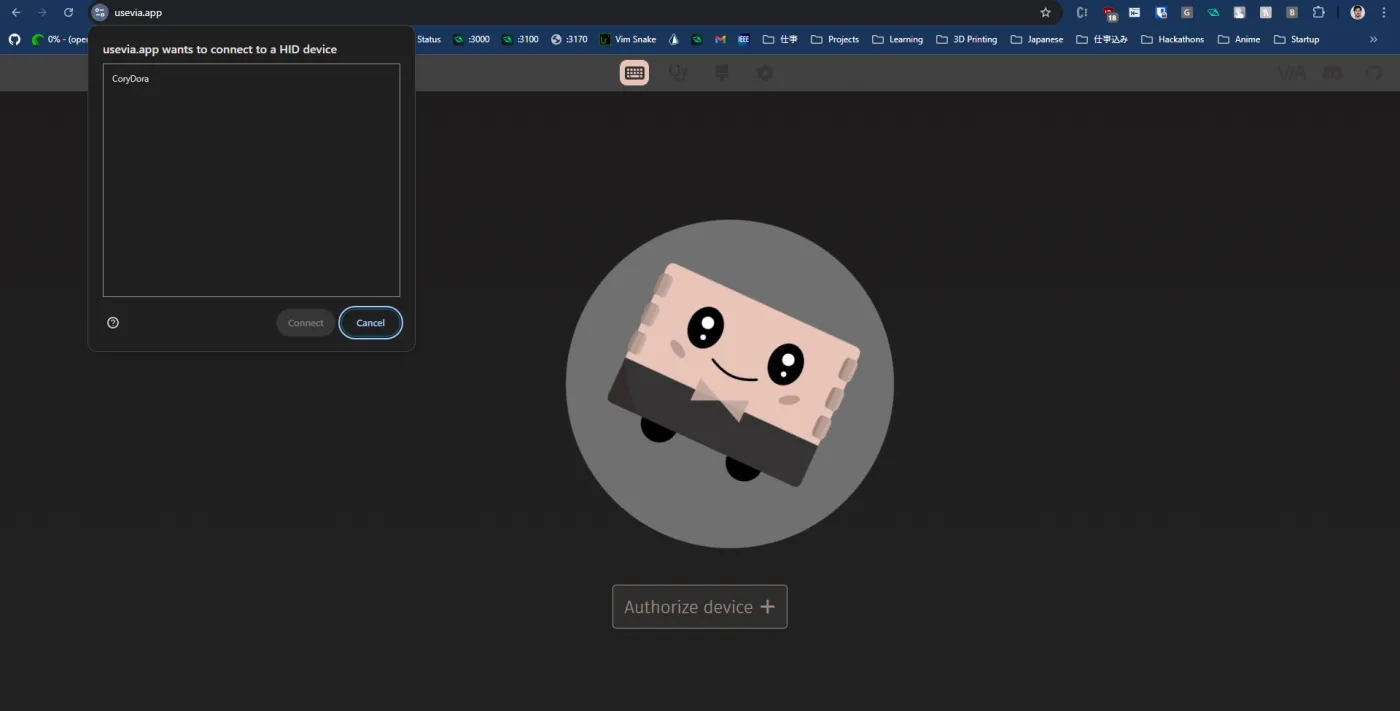
Remap with VIA - step 1Remap with VIA - step 2
5

Load the VIA definition

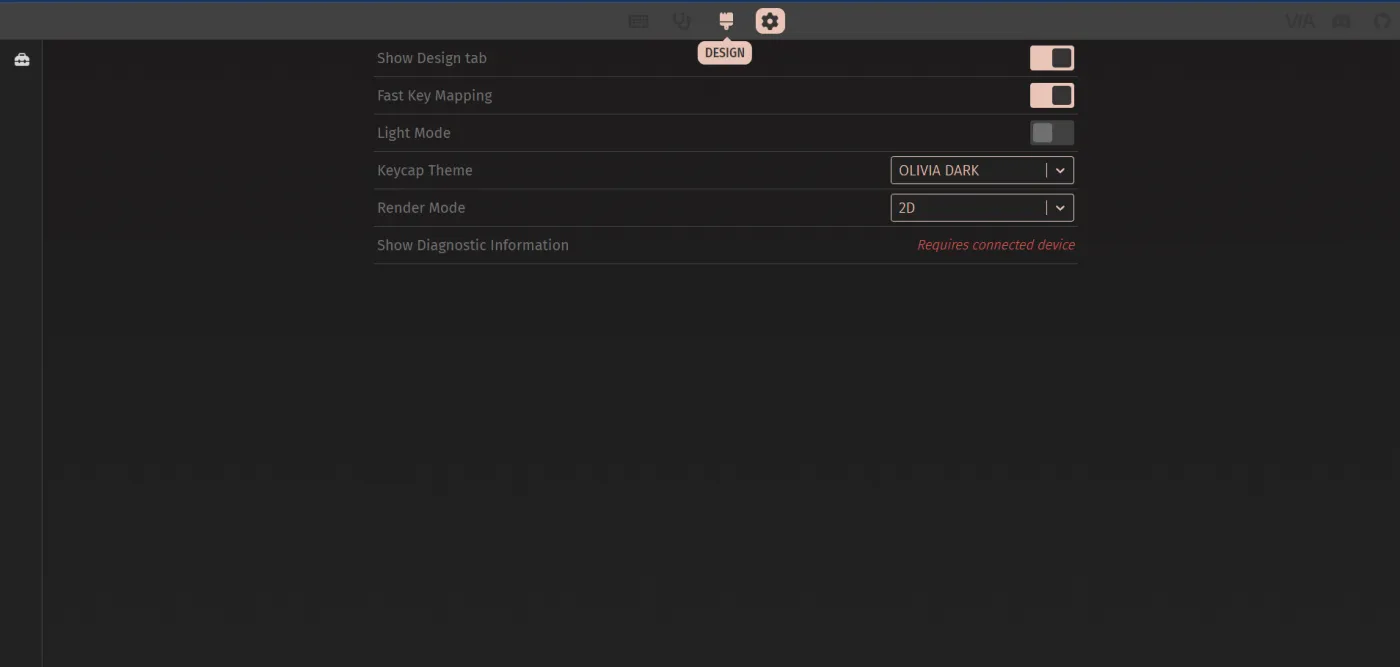
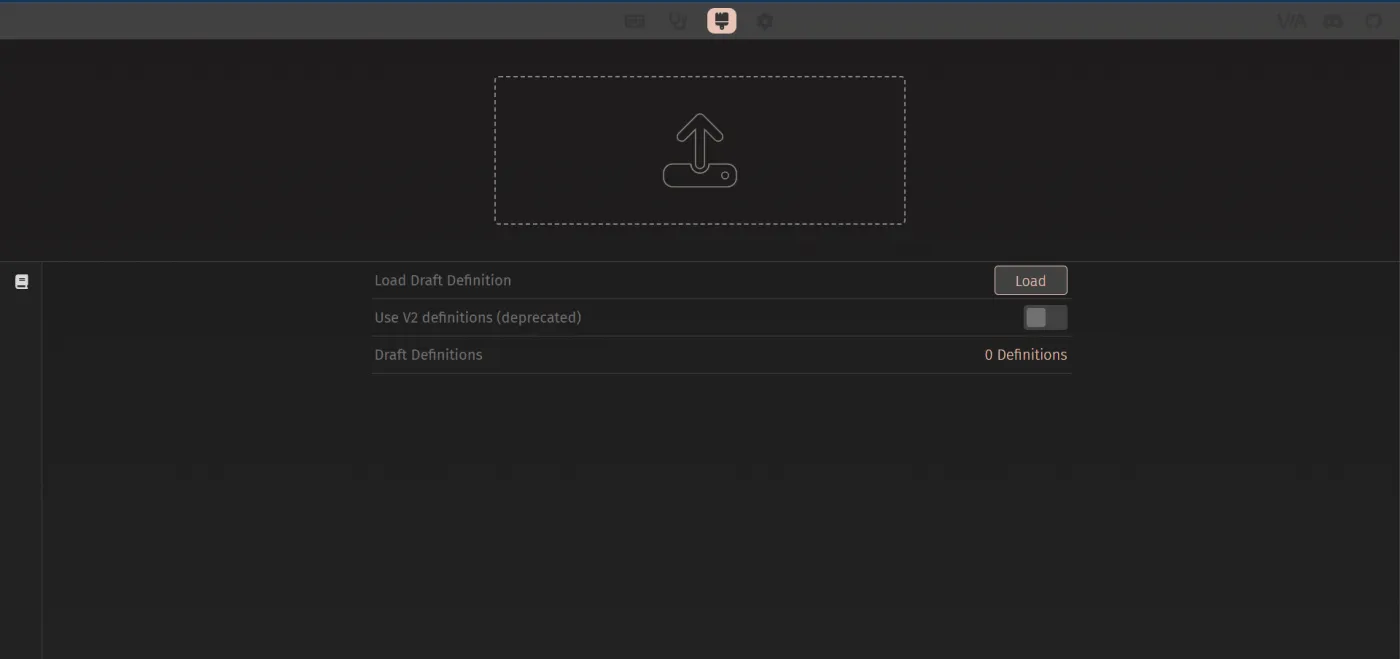
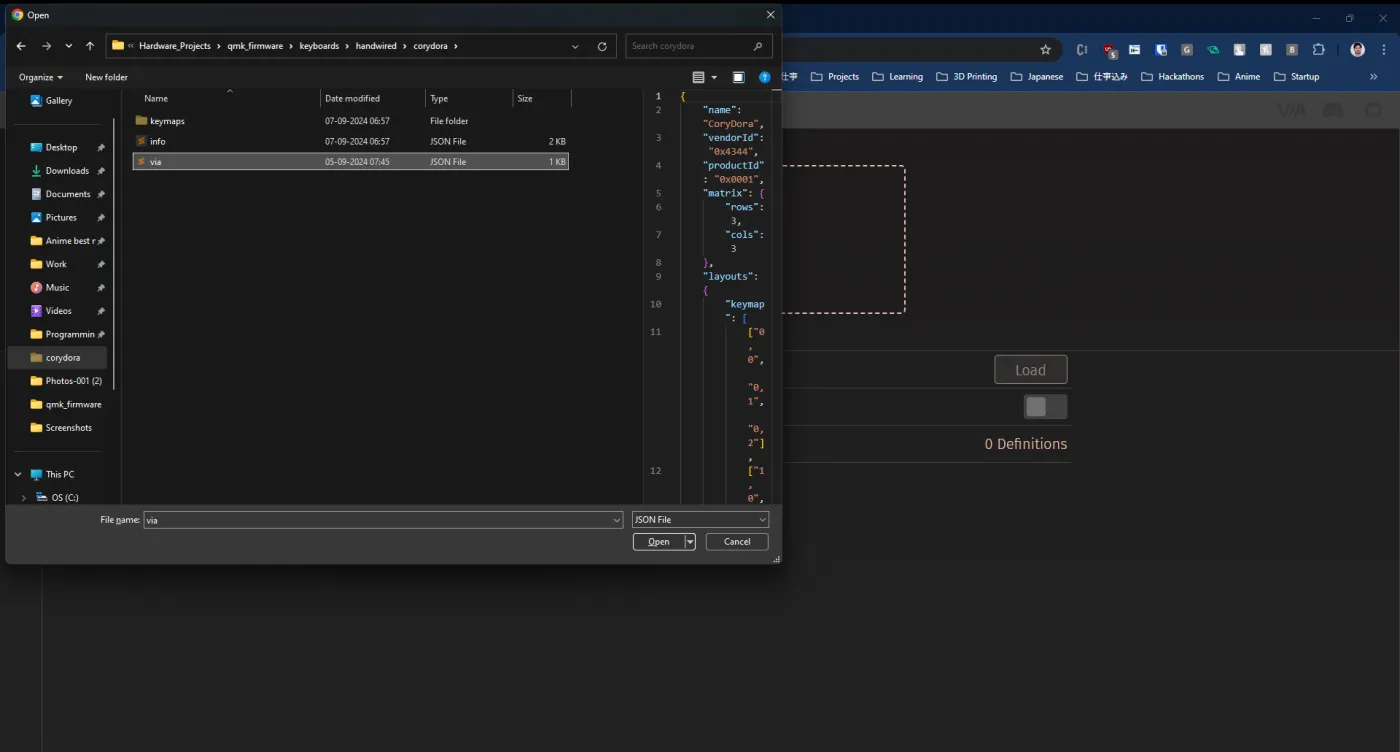
Clone the qmk_firmware repo and find keyboards/handwired/corydora/via.json. In VIA, open the Settings menu, enable Show Design Tab, then use the Load button in the Design tab to load that via.json file.
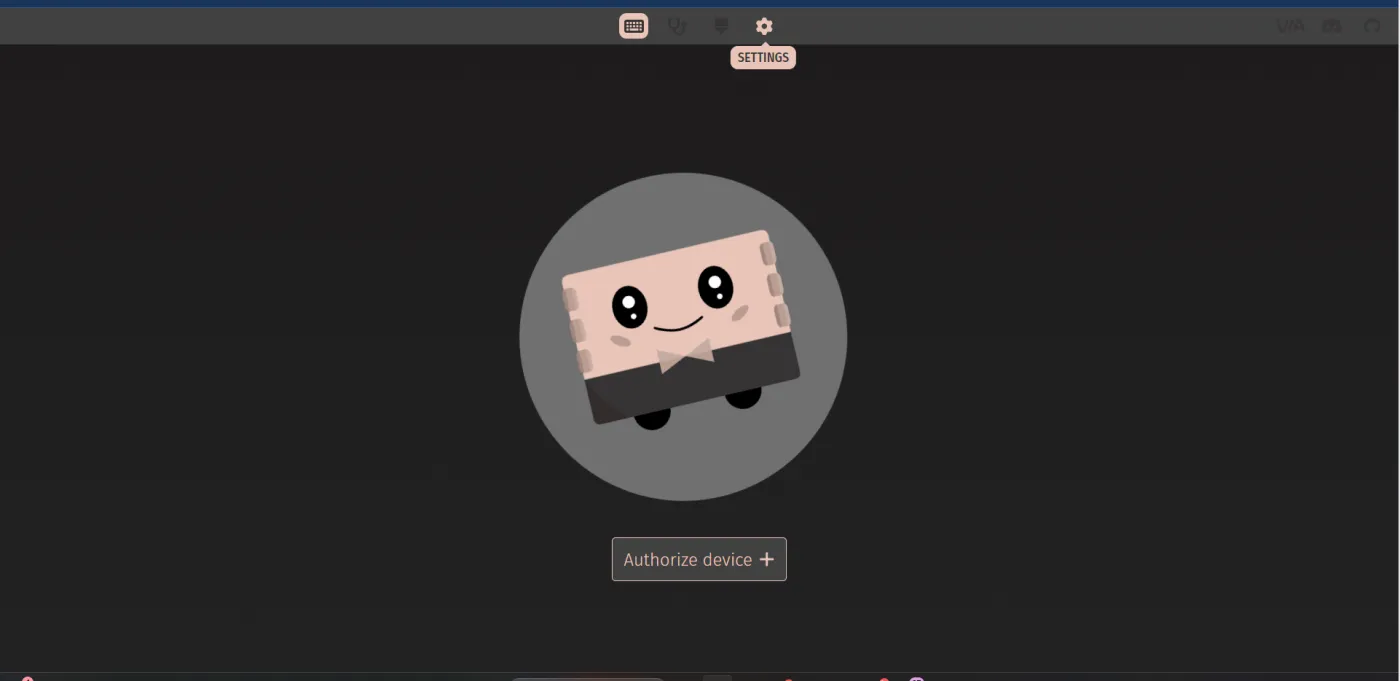
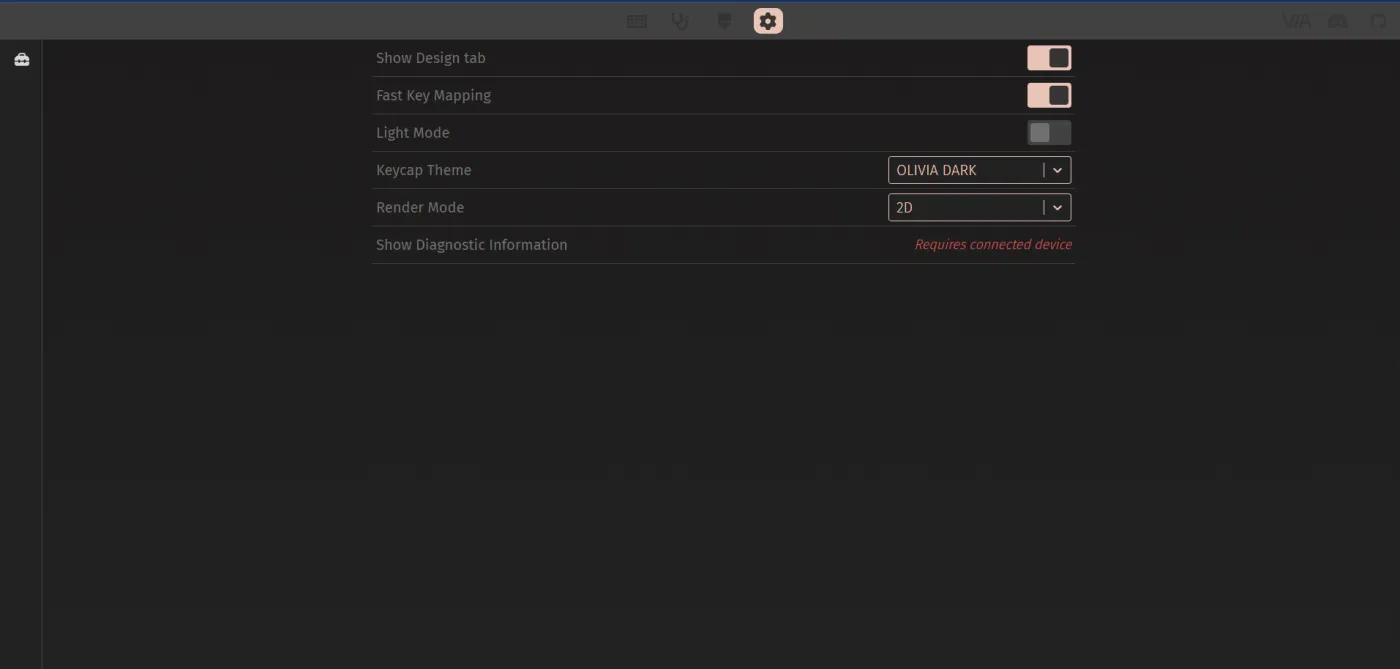
Load the VIA definition - step 1Load the VIA definition - step 2Load the VIA definition - step 3Load the VIA definition - step 4Load the VIA definition - step 5
6

Remap your keys

Once the definition loads, navigate to the Configure tab to drag-and-drop new keycodes onto any key. Changes apply instantly - no reflash needed.
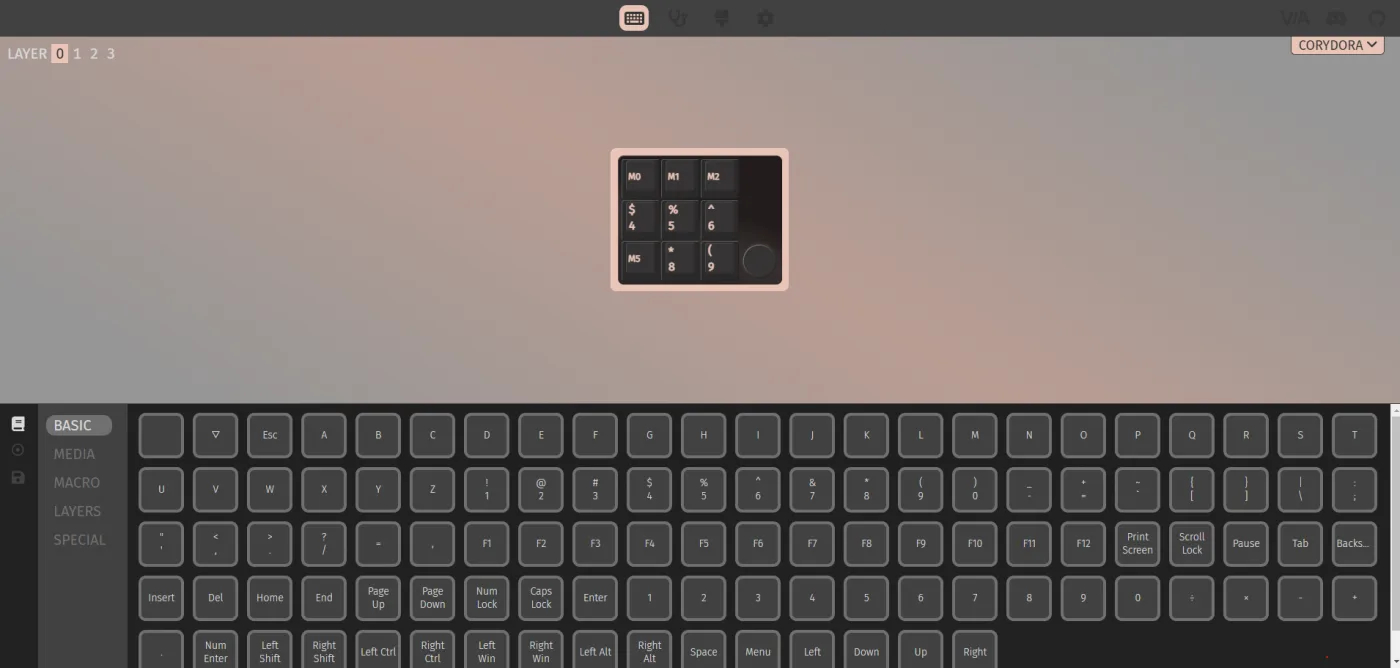
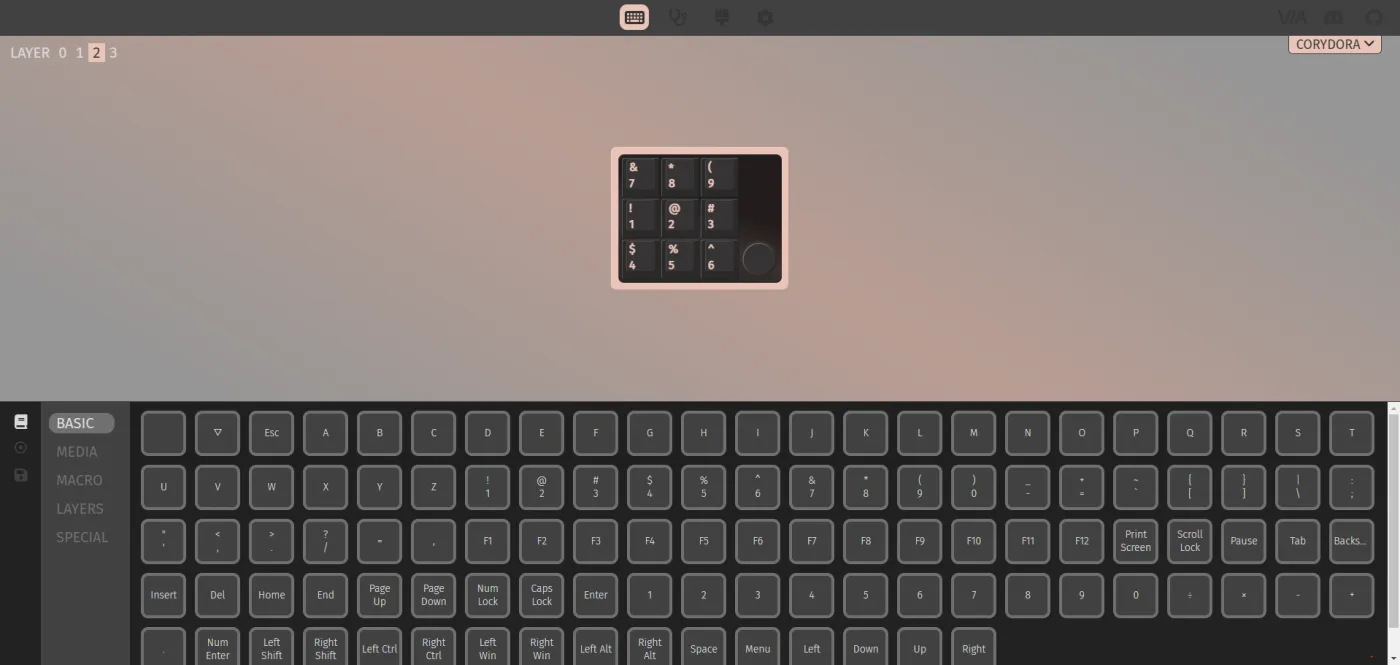
The CoryDora firmware is not yet in the official QMK repo - clone the fork linked in the GitHub README.
Remap your keys - step 1Remap your keys - step 2

FAQ

Do I need to solder to build one from the kit?
Yes - the kit comes with unsoldered components. All parts are through-hole, making it a good first soldering project. If you buy the assembled version from the shop, it ships with switches pre-soldered.
Which switches are compatible?
Any MX-compatible switch with the standard 5-pin or 3-pin footprint. The hotswap sockets let you swap them without soldering.
Can I remap the keys without reflashing?
Yes. The firmware supports VIA. Use usevia.app to remap keys live - no build toolchain needed. See the onboarding guide above for the setup steps.
Is the firmware in the official QMK repo?
Not yet. The firmware lives in a fork linked from the GitHub README. Follow the onboarding guide for the exact clone URL and path.
What license is this under?
The hardware files (KiCad, STEP, STLs) are open source hardware. GitHub reports no SPDX license file in the repo - check the README for the current licensing intent.
Made by
Balu B
Balu B
Bengaluru, India
1
project
100
backers

Maker and engineer who built CoryDora - a fully open-source QMK macropad made in Bengaluru. Runs Team Deku. Also an aquarist.

Quick specs
MCU
RP2040 Zero
Layout
3x3 + rotary encoder
Switches
MX hotswap (9 slots)
Display
0.91" OLED 128x32
Interface
USB-C
Firmware
QMK + VIA